
In this article:
Introduction
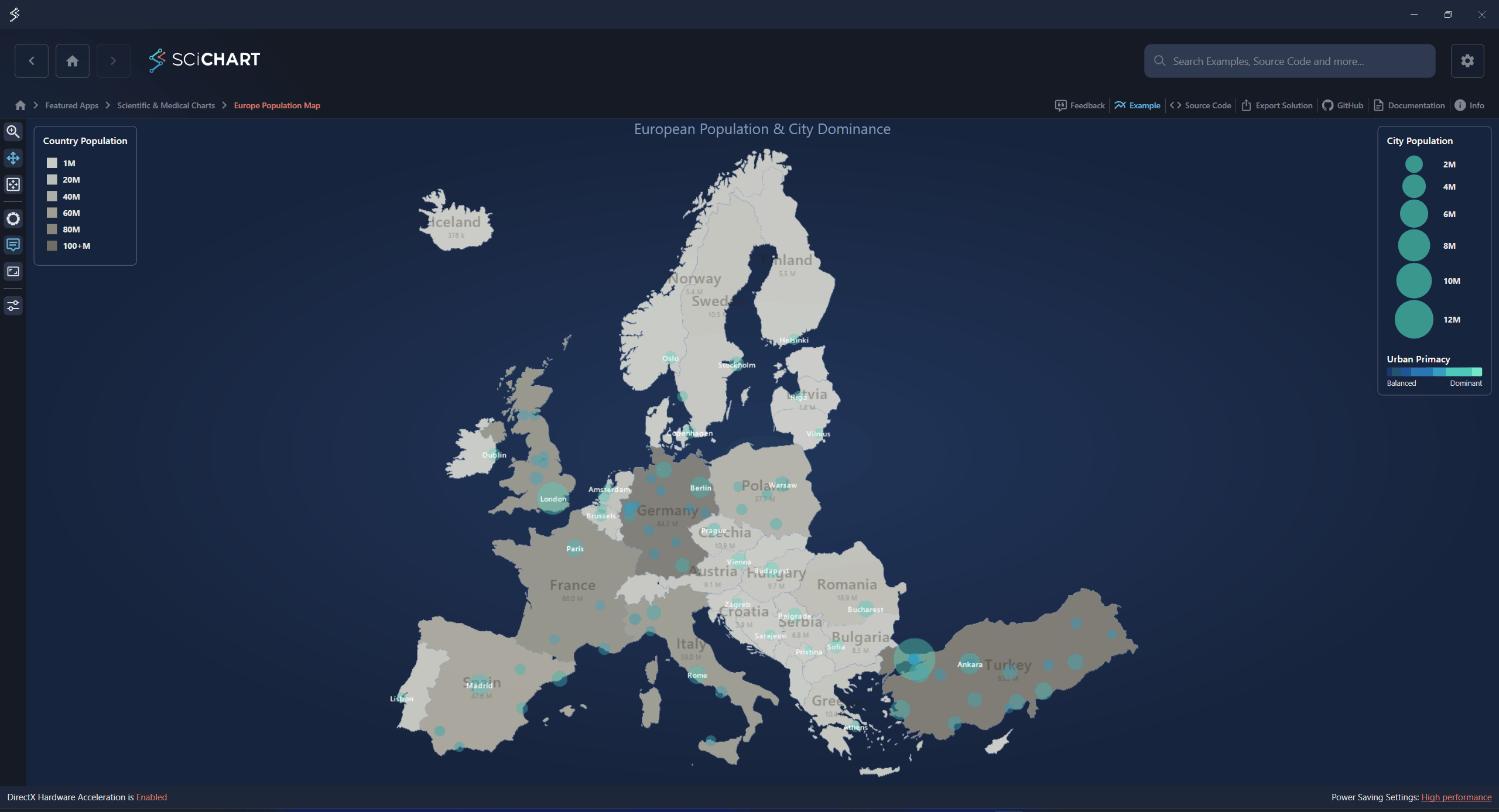
An aspect-ratio lock keeps a constant relationship between the on-screen size of one X-axis unit and one Y-axis unit - circles stay round, projected maps stay undistorted, and engineering drawings keep their true proportions.
AspectRatioViewportManager enforces the ratio by adjusting the X and Y axes' VisibleRanges on every render pass, before the surface draws, so zooming, panning, resizing the window, and ZoomExtents all stay corrected automatically.
The AspectRatio ViewportManager has been introduced in SciChart WPF v9.1.
Creating an Aspect-Ratio-Locked Chart
| Creating an Aspect-Ratio-Locked Chart |
Copy Code |
|---|---|
<UserControl.Resources> <!-- AspectRatio=1 draws one X unit and one Y unit at the same pixel length; Fit grows whichever axis is too zoomed-in so nothing is ever cropped. --> <s:AspectRatioViewportManager x:Key="AspectRatioVm" AspectRatio="1" AspectRatioMode="Fit" Anchor="Center" /> </UserControl.Resources> <s:SciChartSurface ViewportManager="{StaticResource AspectRatioVm}"> ... </s:SciChartSurface> | |
| Creating an Aspect-Ratio-Locked Chart |
Copy Code |
|---|---|
sciChartSurface.ViewportManager = new AspectRatioViewportManager
{
    AspectRatio = 1.0,
    AspectRatioMode = AspectRatioMode.Fit,
    Anchor = AspectRatioAnchor.Center
}; | |
The AspectRatio Property
AspectRatio is the on-screen length of one X-axis unit divided by the on-screen length of one Y-axis unit (pixels-per-X-unit : pixels-per-Y-unit).
The default, 1.0, draws an X unit and a Y unit at the same pixel length. Values above 1.0 stretch the data horizontally; values below 1.0 stretch it vertically.
Double.NaN disables the correction - a convenient runtime on/off switch that leaves the manager attached. Non-positive, non-NaN values throw ArgumentOutOfRangeException from the setter.
| AspectRatio property values |
Copy Code |
|---|---|
// 1.0 (default): one X unit and one Y unit at the same pixel length aspectVm.AspectRatio = 1.0; // Above 1.0 stretches horizontally, below 1.0 stretches vertically aspectVm.AspectRatio = 2.0; // Disables the correction at runtime, without detaching the manager aspectVm.AspectRatio = double.NaN; // Non-positive, non-NaN values throw ArgumentOutOfRangeException aspectVm.AspectRatio = -1.0; // throws | |
AspectRatioMode
AspectRatioMode decides which axis range is authoritative and which is resized to satisfy AspectRatio. Once the authoritative axis is chosen, the other axis's span is fully determined by the ratio and the chart-area pixel size.
LatestChanged (default)
The axis the user changed most recently stays authoritative; the other axis follows. Before any change has happened, the X axis is authoritative. This is the best choice for interactive single-axis zoom workflows.
aspectVm.AspectRatioMode = AspectRatioMode.LatestChanged; // default
X
The X axis range is held; the Y axis is resized to satisfy the ratio. This may crop or expand Y.
aspectVm.AspectRatioMode = AspectRatioMode.X;
Y
The Y axis range is held; the X axis is resized to satisfy the ratio. This may crop or expand X.
aspectVm.AspectRatioMode = AspectRatioMode.Y;
Fit
The more zoomed-out axis is held and the other is expanded, so the ratio is met without ever cropping data - the spare axis simply gains margin.
aspectVm.AspectRatioMode = AspectRatioMode.Fit;
The Anchor Property
Anchor decides which point of the resized axis range stays fixed while the range is recomputed: Min (Max moves), Max (Min moves), or Center - the default, where both edges move symmetrically.
| The Anchor Property |
Copy Code |
|---|---|
aspectVm.Anchor = AspectRatioAnchor.Center; // default: both edges move symmetrically
// AspectRatioAnchor.Min  - Min stays fixed, Max moves
// AspectRatioAnchor.Max - Max stays fixed, Min moves | |
Zooming, Panning and ZoomExtents
Because the correction runs inside the render pipeline, every interaction - mouse-wheel zoom, rubber-band zoom, panning, resizing the window, and ZoomExtents - stays aspect-correct automatically, with no extra code.
Multi-Axis Charts
XAxisId and YAxisId (both default to AxisCore.DefaultAxisId) select the axis pair the ratio is enforced on; any other axes on the surface are left untouched.
Composing with ChildViewportManager
A surface holds exactly one ViewportManager, so AspectRatioViewportManager exposes ChildViewportManager: an optional inner IViewportManager that computes the ranges first, with the aspect correction applied on top of its result. Set it before the manager is attached to the surface:
| Composing with ChildViewportManager |
Copy Code |
|---|---|
// Wrap the surface's current ViewportManager; the aspect correction is applied // on top of the ranges it computes. Set ChildViewportManager before attaching. var aspectVm = new AspectRatioViewportManager { AspectRatio = 1.5, AspectRatioMode = AspectRatioMode.Fit, ChildViewportManager = new CustomViewportManager() }; sciChartSurface.ViewportManager = aspectVm; | |
Mixed Axis Types (AspectReferenceScale)
The ratio math runs in a common "reference space" so AspectRatio compares like with like across axis types, rather than comparing raw coordinate values (for example DateTime ticks) against plain numeric values.
The AspectReferenceScale property holds the IAspectReferenceScale used for this - an interface with three members: IsSuitableFor(IAxis axis), ToReferenceUnits(IAxis axis, double rawValue), and FromReferenceUnits(IAxis axis, double referenceValue).
The default is CompositeAspectReferenceScale, which selects a built-in scale per axis and delegates to it:
- DefaultScale (DefaultAspectReferenceScale) - numeric axes; the identity conversion, and the fallback for any axis type the others do not handle.
- DateScale (DateAspectReferenceScale) - DateTime axes; one reference unit is ReferenceUnit of time, one day by default.
- TimeSpanScale (TimeSpanAspectReferenceScale) - TimeSpan axes; one reference unit is ReferenceUnit of duration, one second by default.
- LogarithmicScale (LogarithmicAspectReferenceScale) - logarithmic axes; one reference unit is one exponent step of the axis's LogarithmicBase (a "decade" for base 10).
Reconfigure a built-in scale to customize a single axis type, or set AspectReferenceScale to a completely custom IAspectReferenceScale implementation:
| Reconfiguring a built-in scale |
Copy Code |
|---|---|
// Reconfigure a built-in scale: measure a DateTime axis in weeks instead of days var scale = new CompositeAspectReferenceScale(); scale.DateScale.ReferenceUnit = TimeSpan.FromDays(7); aspectVm.AspectReferenceScale = scale; | |
Tips and Best Practices
- Choosing a mode: use Fit when data must never be cropped, LatestChanged for interactive single-axis zoom workflows, and X/Y when one axis is a fixed reference that must never change.
- Runtime toggle: set AspectRatio to Double.NaN to disable the correction without detaching the manager.
- Deterministic zoom extents view: pin each axis's ZoomExtentsRange to the full data region so a double-click always returns to the same, correctly-proportioned view.
Use Cases
- Maps and GIS overlays
- Circular and geometric data (Lissajous figures, spirographs, polar-like figures drawn on Cartesian axes)
- CAD and engineering drawings
- Medical imaging
- Physics simulations in isotropic space
See Also
- SciChartSurface.ViewportManager / DefaultViewportManager API
- Spirograph & Aspect Ratio example (Modify Axis Behavior)
- Europe Population Map example (Featured Apps)
- Seismic Activity Explorer example (Featured Apps)