The TextAnnotation
The TextAnnotation allows to place a piece of text at a specific location on a chart:
Note
Examples of the Annotations usage can be found in the SciChart Android Examples Suite as well as on GitHub:
The TextAnnotation can be configured using the properties listed in the table below:
| Property | Description |
|---|---|
| text | Specifies the text for an annotation. |
| fontStyle | Determines the appearance of the text via the FontStyle object. Please refer to the Styling and Theming article to learn more. |
| textGravity | Specifies a text gravity with Android Gravity. |
| canEditText | When set to true - allows to modify the text in run-time after selecting an annotation. See the Edit TextAnnotation in Run-Time section. |
| rotationAngle | Rotates an annotation through the specified angle in degrees. |
Position of the TextAnnotation is defined by the X1 or Y1 coordinate, depending on the axis.
Those values can be accessed via the x1 and y1 properties.
Note
The xAxisId and yAxisId must be supplied if you have axis with non-default Axis Ids, e.g. in multi-axis scenario.
Also, because TextAnnotation is derived from the AnchorPointAnnotation it can be aligned relative to the X1 or Y1 coordinate by setting the Anchor Points. For more information about the Anchor Points - refer to the corresponding section [Annotations APIs](Annotations APIs.html) article.
Note
To learn more about other Annotation Types, available out of the box in SciChart, please find the comprehensive list in the Annotation APIs article.
Create a TextAnnotation
A TextAnnotation can be added onto a chart using the following code:
// Assume a surface has been created and configured somewhere
// Create CustomAnnotation instance
final TextAnnotation textAnnotation = new TextAnnotation(getContext());

// Set the text
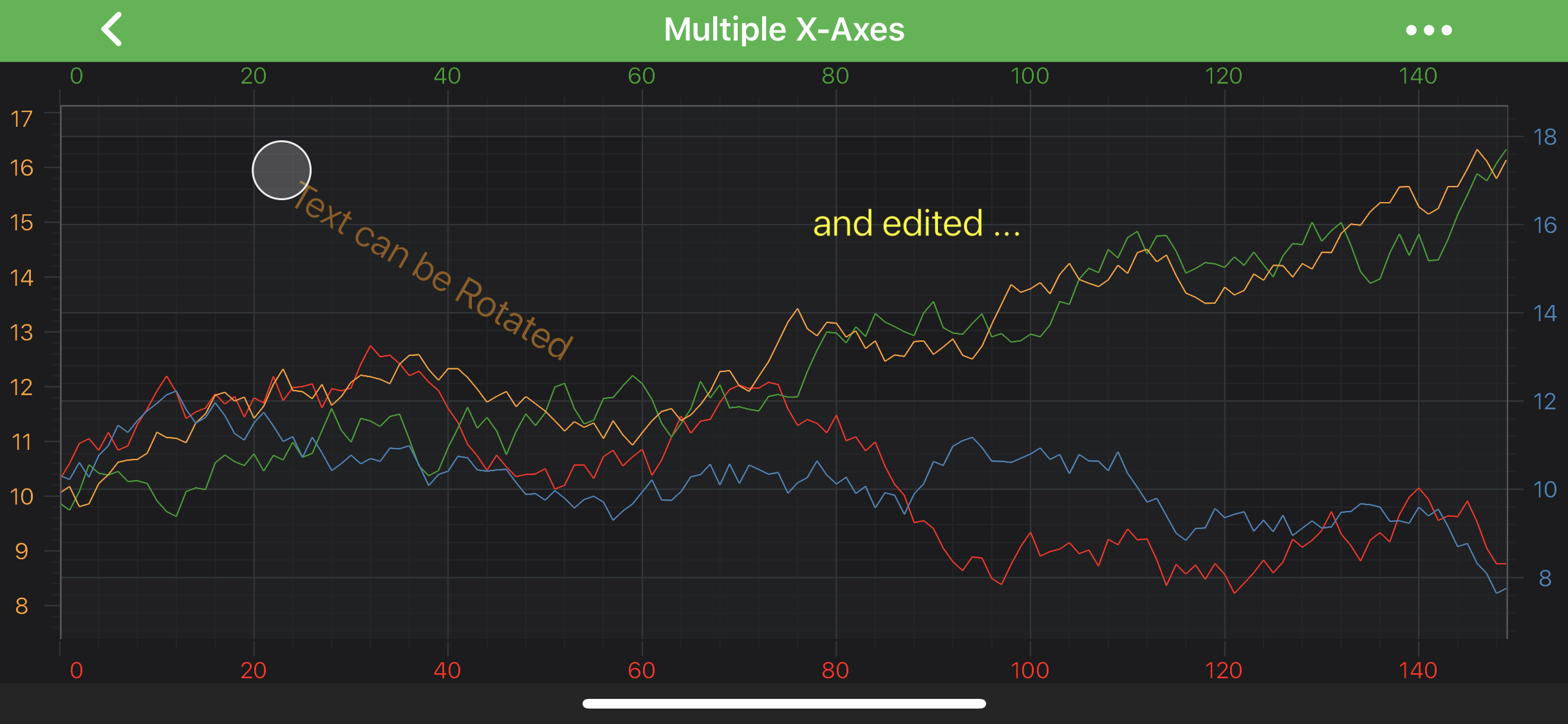
textAnnotation.setText("Text can be Rotated");

// Specify a FontStyle for the text
textAnnotation.setFontStyle(new FontStyle(20, 0xBBFC9C29));

// Specify rotation Angle in Degrees if needed
textAnnotation.setRotationAngle(-30);

// Specify a desired position
textAnnotation.setX1(20);
textAnnotation.setY1(14);

// Allow to interact with the annotation in run-time
textAnnotation.setIsEditable(true);

// In a multi-axis scenario, specify the XAxisId and YAxisId
textAnnotation.setXAxisId("BottomAxisId");
textAnnotation.setYAxisId("LeftAxisId");

// Add the annotation to the Annotations collection of the surface
surface.getAnnotations().add(textAnnotation);
Note
To learn more about other Annotation Types, available out of the box in SciChart, please find the comprehensive list in the Annotation APIs article.
Edit TextAnnotation in Run-Time
The TextAnnotation can be edited in run-time. To turn that on - just set canEditText to true on your annotation.
Please see the code snippet and result below:
final TextAnnotation editTextAnnotation = new TextAnnotation(getContext());
editTextAnnotation.setIsEditable(true);
editTextAnnotation.setCanEditText(true);
editTextAnnotation.setXAxisId("BottomAxisId");
editTextAnnotation.setYAxisId("LeftAxisId");
editTextAnnotation.setX1(80);
editTextAnnotation.setY1(14);
editTextAnnotation.setText("and edited ...");
editTextAnnotation.setFontStyle(new FontStyle(20, Color.YELLOW));
Note
Be aware, if you use canEditText (allows edit text in run-time) in conjunction with isEditable (allows drag annotation over that chart), you will need to perform 2 taps - first one to select annotation, and only after that - tap to enter editing.