
In this tutorial we will show you how to setup a new npm project with scichart.js and scichart-react.
React requires a little setup so we'd like to do this boilerplate once, which will be used as a basis for future tutorials.
We'll show you how to create a new JavaScript project and adding scichart and scichart-react libraries as dependencies to it. Then how to use webpack to initialize the application and show an empty chart.
Finally, we'll show how to show a static chart using the config property which uses the JSON Builder API to provide a chart definition.
Future tutorials will show how to customize the UI to include single charts, multiple charts and more.
Source code for this tutorial can be found at SciChart.Js.Examples Github Repository under Boilerplates/scichart-react
What is SciChart-React?
scichart-react is a free open source React Chart component for use with scichart.js. This simplifies the development of React Charts by handling initialisation, deletion and lifecycle of the chart and allows multiple options for creating simple to advanced options. Find out more at the links below:
- Blog: Introducing scichart-react
- github.com/abtsoftware/scichart-react
- npmjs.com/package/scichart-react
How to Setup A Project with SciChart-React
Before starting the tutorial, lets briefly go over project initialization for React, SciChart.js and scichart-react.
Creating the Project
Go ahead and open up VSCode or WebStorm and enter the terminal. Create a directory to host your tutorial, and type in the following command.
| Initialising an npm project |
Copy Code
|
|---|---|
> npm init |
|
Next, install packages. We will need react-dom, scichart and scichart-react
| Initialising an npm project |
Copy Code
|
|---|---|
// scichart, scichart-react and react, react-dom required for the application npm install scichart scichart-react react react-dom // Webpack is required for npm start, and copying wasm files npm install --save-dev webpack webpack-dev-server webpack-cli copy-webpack-plugin // Babel is required for JSX files npm install --save-dev @babel.core npm install --save-dev @babel/preset-react npm install --save-dev babel-loader |
|
By the time you've completed this your package.json should look like this:

Setting up Webpack
Whichever package bundler you use, some configuration will need to be done to setup the project for React and loading JSX (or TSX if you use Typescript).
You'll have to add a webpack.config.js to your project which needs to load JSX/JS files, compiled to bundle.js and copy scichart wasm files to the output.
Note in particular the use of CopyPlugin (from copy-webpack-plugin) which copies SciChart2d.wasm and SciChart3d.wasm (optional for 3D charts) to the output directory.
Creating the code
Let's go ahead and create the code for our first chart with scichart-react. Create a folder called /src and create index.html and index.jsx file.
These two initialize the React DOM and load the root component <Main/> found in index.jsx.
Adding App.jsx and Creating the React Chart
Next, add an App.jsx file to the project. This is where we're going to initialize our SciChart.js chart using scichart-react.
The <SciChartReact /> component renders a single scichart chart. config is a prop which requires a JSON object matching the Builder API schema which can define your chart.. We'll show the JSON config for this in the next step. style is applied to the <div> where the scichart chart is hosted.
Breaking down App.jsx
This example demonstrates how to build a basic chart using SciChart.js with React and the <SciChartReact /> component. SciChart.js is a powerful charting library for high-performance data visualization, and this code shows one way to initialize a chart using a configuration object with the Builder API in SciChart.
The <SciChartReact /> component from the SciChart library acts as a React wrapper for the SciChartSurface. It allows you to create charts using a configuration object: A declarative, JSON-like way to define the chart, or, an initialization function: A programmatic way to define the chart.
In this example, the chartConfig object contains all the details needed to set up the chart, such as axes, series, modifiers, and themes. You pass this configuration to the <SciChartReact config={chartConfig} /> component, and SciChart automatically builds the chart for you.
Using a chartConfig object is simple and quick, and ideal for creating static charts. However, if you wish to dynamically create or update charts and have better access to the SciChart API, you can also pass an initialization function to <SciChartReact />
Understanding chartConfig
config: is the JSON object which defines the chart. In this code we initialize a SciChartSurface with the SciChartJsNavyTheme, set the title equal to "SciChart.js First Chart" and set titleStyle to have a fontSize of 22. We create a single XAxis and YAxis of type NumericAxis, with an axisTitle and set growBy - a property which allows you to set padding on the top/bottom of an axis when autofitting to the data.
We define a single series of ESeriesType.LineSeries and pass some xyData with predefined xValues and yValues. Options to the series include stroke, strokeThickness, pointMarker (whch renders an Ellipse at each datapoint) and a SweepAnimation which animates the chart on startup.
Finally, we add modifiers - or Chart Modifiers - behaviours which modify the chart such as zoomEChart2DModifierType.MouseWheelZoom, ZoomPan, and ZoomExtents. Further modifiers are possible which allow you to add tooltips, legends, selection and more.
This config object hydrates the chart and presents you with a static chart that you can interact with. Further modification of the chart is possible by adding an onInit callback to <SciChartReact /> which allows you to access the hydrated SciChartSurface instance.
Future tutorials will dig into the specifics of initializing and configuring charts, but this one serves to show you how to get a SciChart.js chart into React quickly.
The Output Result
If you run the application by typing npm start in the terminal, you should see this!
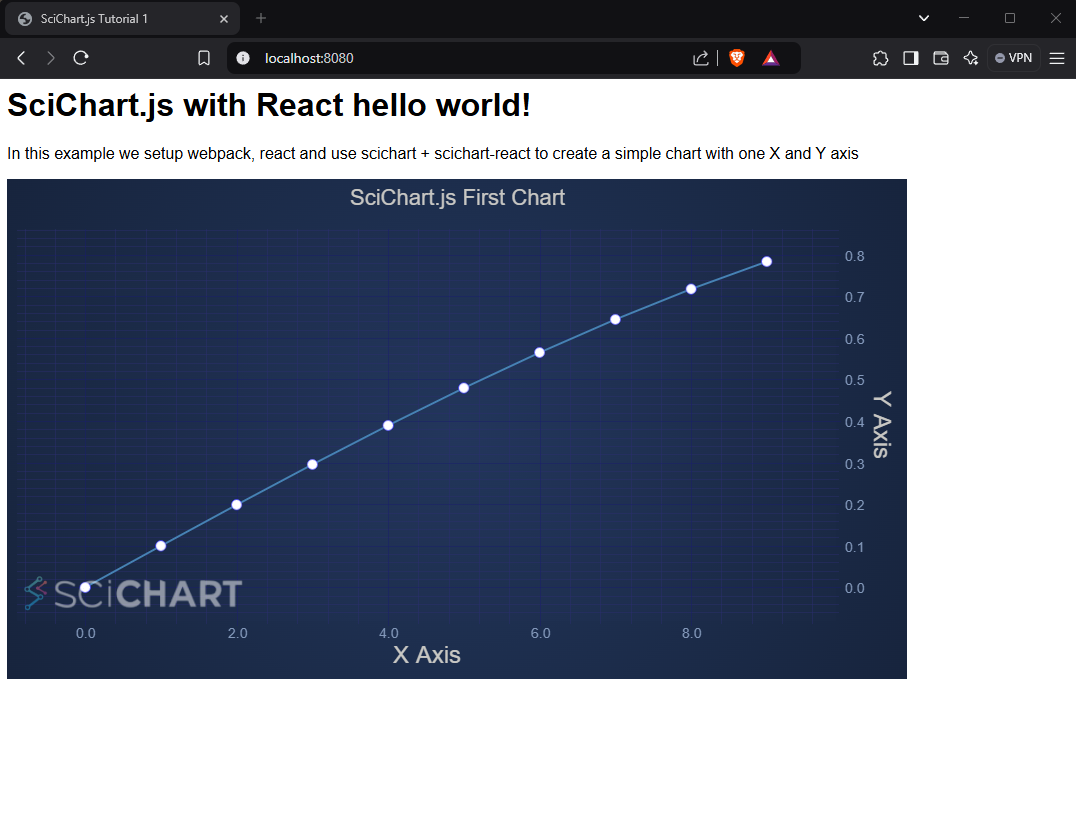
It's advisable to check out the SciChart.Js.Examples Github Repository and run the project under Boilerplates/scichart-react. You can use this as a basis for future projects with scichart-react and our next set of tutorials will be based on it. Happy coding!
A note about SciChartSurface.delete():
<SciChartReact /> automatically calls sciChartSurface.delete(), ensuring that all wasm memory is disposed on component unmount. This cascades and calls dataSeries.delete() on all data currently in the chart. If you dynamically add/remove series however you will need to delete these as you go along. For more info see the article on Deleting DataSeries Memory.