Search Results for

    Show / Hide Table of Contents

    The HorizontalLineAnnotation

    The HorizontalLineAnnotation draws the horizontal line between X1 and X2 coordinates at Y1:

    Note

    You might find it useful to learn about the VerticalLineAnnotation as well since it's very similar with the Horizontal one.
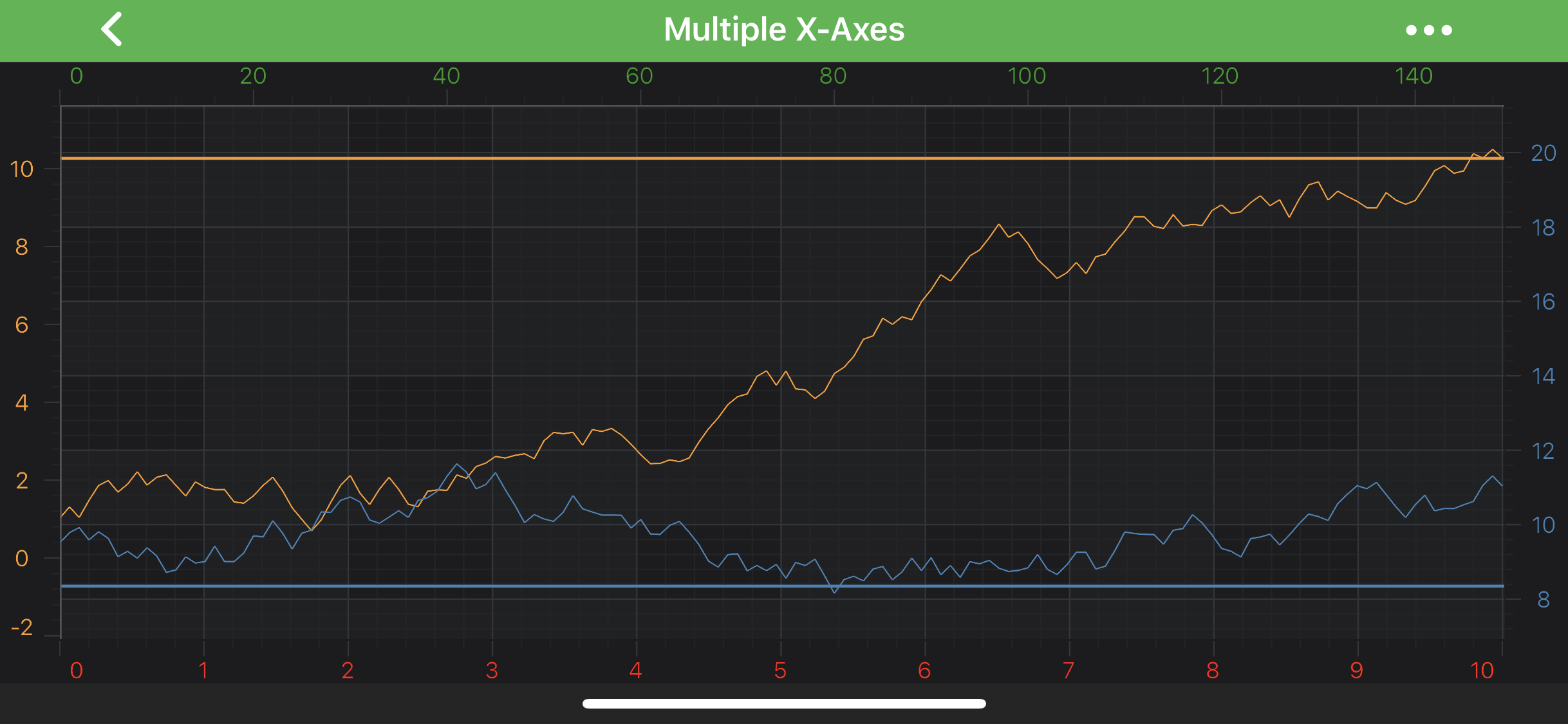
    Horizontal Line Annotation

    Note

    Examples of the Annotations usage can be found in the SciChart Android Examples Suite as well as on GitHub:

    • Native Android Chart Annotations Example

    • Native Android Chart Interactive Annotations Example

    • Xamarin Android Chart Annotations Example

    • Xamarin Android Chart Interactive Annotations Example

    The HorizontalLineAnnotation class is inherited from LineAnnotation, and hence, provides the stroke property which is used to define the line annotation color. It expects a PenStyle object. To learn more about Pens and Brushes and how to utilize them, please refer to the PenStyle, BrushStyle and FontStyle article.

    Note

    To learn more about Annotations in general - please see the Common Annotation Features article.

    In general case, the position of an HorizontalLineAnnotation can be defined by the y1 value only, which will lead to full-width horizontal line at Y1 coordinate.

    Despite the above, it is possible to specify X1 and X2 coordinates for the line ends, but it will work differently while combined with different Gravity. horizontalGravity property can consume the following values:

    • Gravity.LEFT - the X1 coordinate will be applied to the right end of a line. The line appears pinned to the left side.
    • Gravity.RIGHT - the X1 coordinate will be applied to the left end of a line. The line appears pinned to the right side.
    • Gravity.CENTER_HORIZONTAL - both X1 and X2 coordinates will be applied.
    • Gravity.FILL_HORIZONTAL - both X1 and X2 coordinates are ignored. The line appears horizontally stretched. This is the default value.

    The X1 and X2 values can be accessed via the x1 and x2 properties

    Note

    The xAxisId and yAxisId must be supplied if you have an axis with non-default Axis Ids, e.g. in multi-axis scenario.

    Create a HorizontalLine Annotation

    A HorizontalLineAnnotation can be added onto a chart using the following code:

    • Java
    • Java with Builders API
    • Kotlin
    // Assume a surface has been created and configured somewhere
    // Create a HorizontalLine Annotation
    final HorizontalLineAnnotation horizontalLine = new HorizontalLineAnnotation(getContext());
    
    // Allow to interact with the annotation in run-time
    horizontalLine.setIsEditable(true);
    
    // In a multi-axis scenario, specify the XAxisId and YAxisId
    horizontalLine.setXAxisId("TopAxisId");
    horizontalLine.setYAxisId("RightAxisId");
    
    // Specify a desired position by setting coordinates and mode
    horizontalLine.setCoordinateMode(AnnotationCoordinateMode.RelativeY);
    horizontalLine.setY1(0.1);
    
    // Specify the border color for the annotation
    horizontalLine.setStroke(new SolidPenStyle(0xFFFC9C29, true, 2f, null));
    
    // Add the annotation to the Annotations collection of the surface
    surface.getAnnotations().add(horizontalLine);
    
    // Assume a surface has been created and configured somewhere
    // Create a HorizontalLine Annotation
    final HorizontalLineAnnotation horizontalLine = sciChartBuilder.newHorizontalLineAnnotation()
            // Allow to interact with the annotation in run-time
            .withIsEditable(true)
            // In a multi-axis scenario, specify the XAxisId and YAxisId
            .withXAxisId("TopAxisId")
            .withYAxisId("RightAxisId")
            // Specify a desired position by setting coordinates and mode
            .withCoordinateMode(AnnotationCoordinateMode.RelativeY)
            .withYValue(0.1)
            // Specify the border color for the annotation
            .withStroke(2f, 0xFFFC9C29)
            .build();
    
    // Add the annotation to the Annotations collection of the surface
    surface.getAnnotations().add(horizontalLine);
    
    // Assume a surface has been created and configured somewhere
    // Create a HorizontalLine Annotation
    val horizontalLine = HorizontalLineAnnotation(context)
    
    // Allow to interact with the annotation in run-time
    horizontalLine.setIsEditable(true)
    
    // In a multi-axis scenario, specify the XAxisId and YAxisId
    horizontalLine.xAxisId = "TopAxisId"
    horizontalLine.yAxisId = "RightAxisId"
    
    // Specify a desired position by setting coordinates and mode
    horizontalLine.coordinateMode = AnnotationCoordinateMode.RelativeY
    horizontalLine.y1 = 0.1
    
    // Specify the border color for the annotation
    horizontalLine.stroke = SolidPenStyle(-0x363d7, true, 2f, null)
    
    // Add the annotation to the Annotations collection of the surface
    surface.annotations.add(horizontalLine)
    
    Note

    To learn more about other Annotation Types, available out of the box in SciChart, please find the comprehensive list in the Annotation APIs article.

    The AnnotationLabels collection

    By default, the HorizontalLineAnnotation does not show any labels. You can show a label by adding a AnnotationLabel to the annotationLabels collection, like below:

    • Java
    • Java with Builders API
    • Kotlin
    final AnnotationLabel annotationLabel = new AnnotationLabel(getContext());
    annotationLabel.setText("Label text");
    annotationLabel.setLabelPlacement(LabelPlacement.Axis);
    horizontalLine.annotationLabels.add(annotationLabel);
    
    final HorizontalLineAnnotation horizontalLineWithLabel = sciChartBuilder.newHorizontalLineAnnotation()
            .withAnnotationLabel(LabelPlacement.Axis, "Label text")
            .build();
    
    val annotationLabel = AnnotationLabel(context)
    annotationLabel.text = "Label text"
    annotationLabel.labelPlacement = LabelPlacement.Axis
    horizontalLine.annotationLabels.add(annotationLabel)
    

    The Label position can be changed by setting the labelPlacement property which expects one of the LabelPlacement enumeration.

    Note

    Everything about AnnotationLabels collection and AnnotationLabel can be also applied to the VerticalLineAnnotation

    The AnnotationLabel Type

    You can change appearance, position, custom value, etcetera for any annotation label which are listed below:

    • setLabelStyle - applies style for AnnotationLabel.
    • rotationAngle - allows to rotate annotation label text, expects degrees
    • text - you can set custom text for your label.
    • fontStyle - applies the FontStyle object onto the text.
    Note

    By default, AnnotationLabel uses its associated axis Y-value to display a label. To learn more about Pens and Brushes and how to utilize them, please refer to the PenStyle, BrushStyle and FontStyle article.

    Also, you can have more than one AnnotationLabel associated with HorizontalLineAnnotation by adding more than one to the annotationLabels collection.

    Please see the code below, which showcases the utilization of the above settings:

    • Java
    • Java with Builders API
    • Kotlin
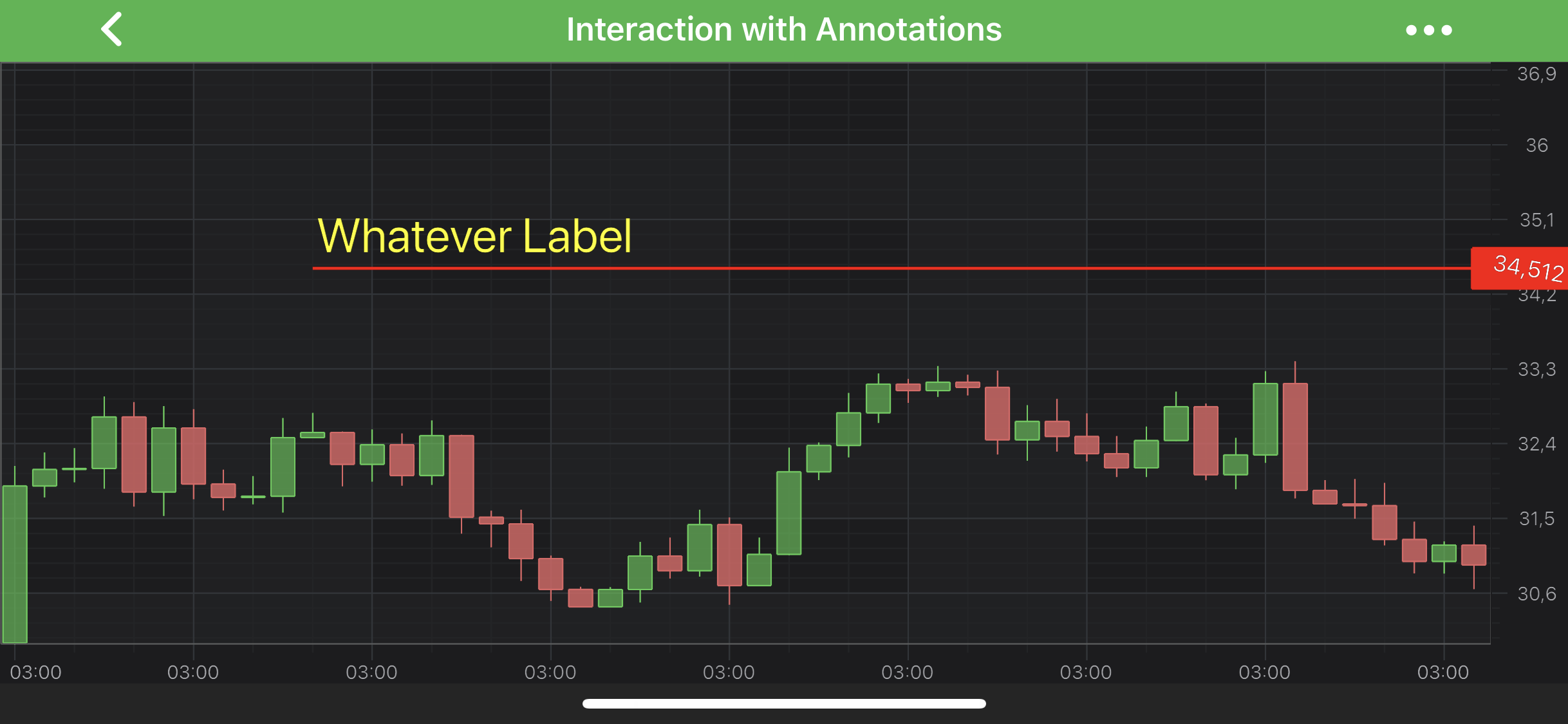
    final HorizontalLineAnnotation horizontalLine = new HorizontalLineAnnotation(getContext());
    horizontalLine.setX1(10.0d);
    horizontalLine.setY1(34.512d);
    horizontalLine.setIsEditable(true);
    horizontalLine.setHorizontalGravity(Gravity.END);
    horizontalLine.setStroke(new SolidPenStyle(Color.RED, true, 2f, null));
    
    AnnotationLabel axisAnnotationLabel = new AnnotationLabel(getContext());
    axisAnnotationLabel.setLabelPlacement(LabelPlacement.Axis);
    axisAnnotationLabel.setRotationAngle(-10);
    axisAnnotationLabel.setPadding(10, 0, 0, 0);
    
    AnnotationLabel annotationLabel = new AnnotationLabel(getContext());
    annotationLabel.setLabelPlacement(LabelPlacement.TopLeft);
    annotationLabel.setText("Whatever Label");
    annotationLabel.setFontStyle(new FontStyle(25, Color.YELLOW));
    
    Collections.addAll(horizontalLine.annotationLabels, annotationLabel, axisAnnotationLabel);
    
    final HorizontalLineAnnotation horizontalLine = sciChartBuilder.newHorizontalLineAnnotation()
            .withPosition(10.0d, 34.512d)
            .withIsEditable(true)
            .withHorizontalGravity(Gravity.END)
            .withStroke(2f, Color.RED)
            .build();
    
    AnnotationLabel axisAnnotationLabel = new AnnotationLabel(getContext());
    axisAnnotationLabel.setLabelPlacement(LabelPlacement.Axis);
    axisAnnotationLabel.setRotationAngle(-10);
    axisAnnotationLabel.setPadding(10, 0, 0, 0);
    
    AnnotationLabel annotationLabel = new AnnotationLabel(getContext());
    annotationLabel.setLabelPlacement(LabelPlacement.TopLeft);
    annotationLabel.setText("Whatever Label");
    annotationLabel.setFontStyle(new FontStyle(25, Color.YELLOW));
    
    Collections.addAll(horizontalLine.annotationLabels, annotationLabel, axisAnnotationLabel);
    
    val horizontalLine = HorizontalLineAnnotation(context)
    horizontalLine.x1 = 10.0
    horizontalLine.y1 = 34.512
    horizontalLine.setIsEditable(true)
    horizontalLine.horizontalGravity = Gravity.END
    horizontalLine.stroke = SolidPenStyle(Color.RED, true, 2f, null)
    
    val axisAnnotationLabel = AnnotationLabel(context)
    axisAnnotationLabel.labelPlacement = LabelPlacement.Axis
    axisAnnotationLabel.rotationAngle = -10f
    axisAnnotationLabel.setPadding(10, 0, 0, 0)
    
    val annotationLabel = AnnotationLabel(context)
    annotationLabel.labelPlacement = LabelPlacement.TopLeft
    annotationLabel.text = "Whatever Label"
    annotationLabel.fontStyle = FontStyle(25.0f, Color.YELLOW)
    
    Collections.addAll(horizontalLine.annotationLabels, annotationLabel, axisAnnotationLabel)
    

    The result will be the following:

    Horizontal Line Annotation With Labels

    Annotation Label Value and TextFormatting

    By default, the label text is formatted by the textFormatting property. For more information, refer to the Axis Labels - TextFormatting and CursorTextFormatting article.

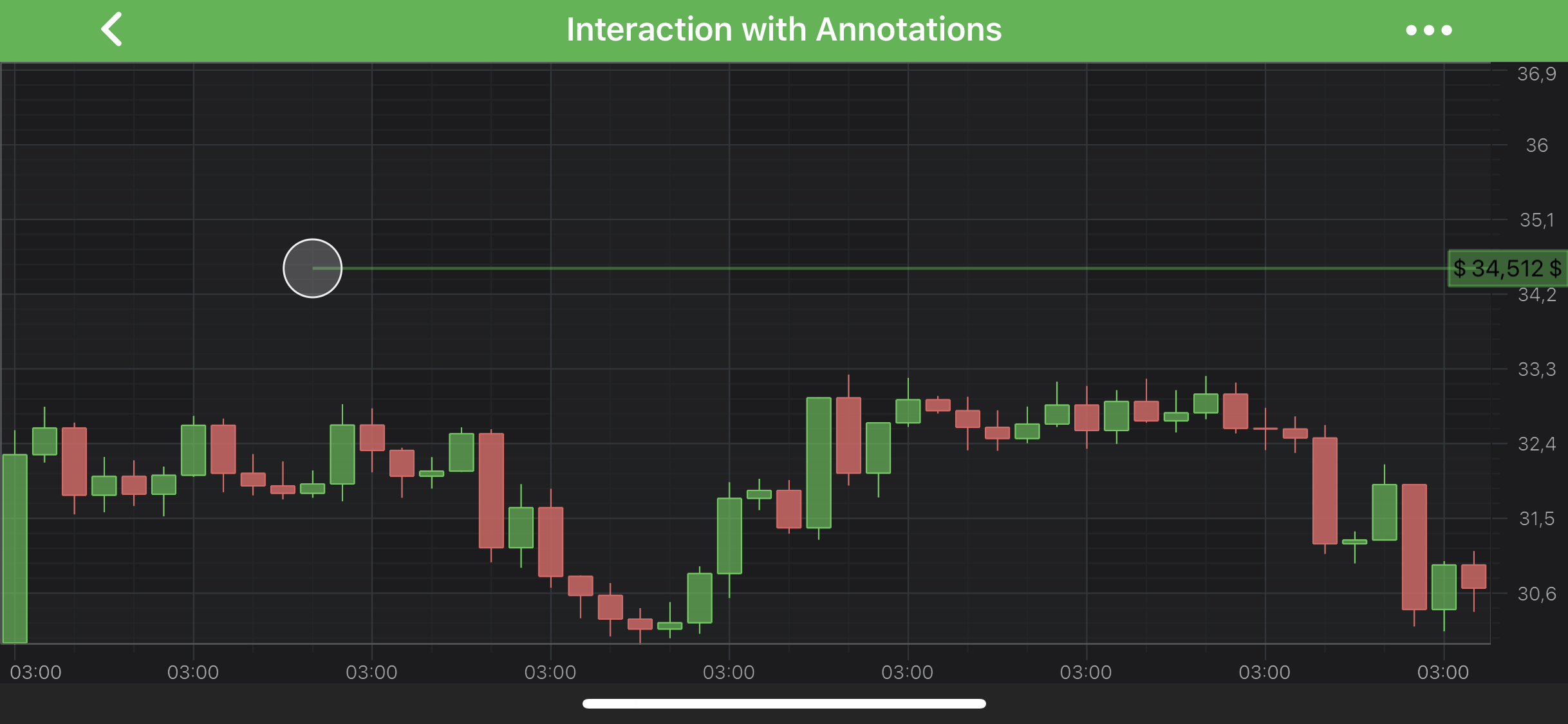
    But you can also override the default behaviour by providing a custom IFormattedValueProvider for your HorizontalLineAnnotation corresponding property.

    Let's see a short example which shows how to use the above:

    • Java
    • Java with Builders API
    • Kotlin
    class AnnotationValueProvider implements IFormattedValueProvider {
        @Override
        public CharSequence formatValue(AxisInfo axisInfo) {
            return axisInfo != null ? String.format(" $ %s $", axisInfo.axisFormattedDataValue) : null;
        }
    }
    
    final HorizontalLineAnnotation horizontalLine = new HorizontalLineAnnotation(getContext());
    horizontalLine.setX1(10.0d);
    horizontalLine.setY1(34.512d);
    horizontalLine.setIsEditable(true);
    horizontalLine.setHorizontalGravity(Gravity.END);
    // Provide custom IFormattedValueProvider for the annotation
    horizontalLine.setFormattedLabelValueProvider(new AnnotationValueProvider());
    
    AnnotationLabel axisAnnotationLabel = new AnnotationLabel(getContext());
    axisAnnotationLabel.setLabelPlacement(LabelPlacement.Axis);
    
    horizontalLine.annotationLabels.add(axisAnnotationLabel);
    
    class AnnotationValueProvider implements IFormattedValueProvider {
        @Override
        public CharSequence formatValue(AxisInfo axisInfo) {
            return axisInfo != null ? String.format(" $ %s $", axisInfo.axisFormattedDataValue) : null;
        }
    }
    
    final HorizontalLineAnnotation horizontalLine = sciChartBuilder.newHorizontalLineAnnotation()
            .withPosition(10.0d, 34.512d)
            .withIsEditable(true)
            .withHorizontalGravity(Gravity.END)
            .build();
    // Provide custom IFormattedValueProvider for the annotation
    horizontalLine.setFormattedLabelValueProvider(new AnnotationValueProvider());
    
    AnnotationLabel axisAnnotationLabel = new AnnotationLabel(getContext());
    axisAnnotationLabel.setLabelPlacement(LabelPlacement.Axis);
    
    horizontalLine.annotationLabels.add(axisAnnotationLabel);
    
    class AnnotationValueProvider: IFormattedValueProvider {
        override fun formatValue(axisInfo: AxisInfo): CharSequence? {
            return if (axisInfo != null) String.format(
                " $ %s $",
                axisInfo.axisFormattedDataValue
            ) else null
        }
    }
    
    val horizontalLine = HorizontalLineAnnotation(context)
    horizontalLine.x1 = 10.0
    horizontalLine.y1 = 34.512
    horizontalLine.setIsEditable(true)
    horizontalLine.horizontalGravity = Gravity.END
    // Provide custom IFormattedValueProvider for the annotation
    horizontalLine.formattedLabelValueProvider = AnnotationValueProvider()
    
    val axisAnnotationLabel = AnnotationLabel(context)
    axisAnnotationLabel.labelPlacement = LabelPlacement.Axis
    
    horizontalLine.annotationLabels.add(axisAnnotationLabel)
    

    The result will be the following:

    Horizontal Line Annotation Label Formatting

    Note

    To learn more about other Annotation Types, available out of the box in SciChart, please find the comprehensive list in the Annotation APIs article.

    Back to top © 2011-2025 SciChart. All rights reserved. | sitemap.xml