SciChart.js Licensing Troubleshooting
If you have purchased commerical licenses of SciChart.js and cannot manage to get your application working with the license applied, please check out our licensing troubleshooting steps below
Step 1: Enabling License Debugging
Do this step "Enabling License Debugging" First before contacting support!
Enable License Debugging in Browser Dev Tools
- In your application, open up dev tools.
- Find the
Applicationtab and under local storage - Set a flag
LICENSE_DEBUG = 1. Or, put the following code snippet in your app. This will output license debug information to the console.
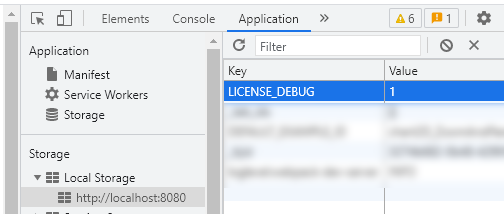
- Reload the page
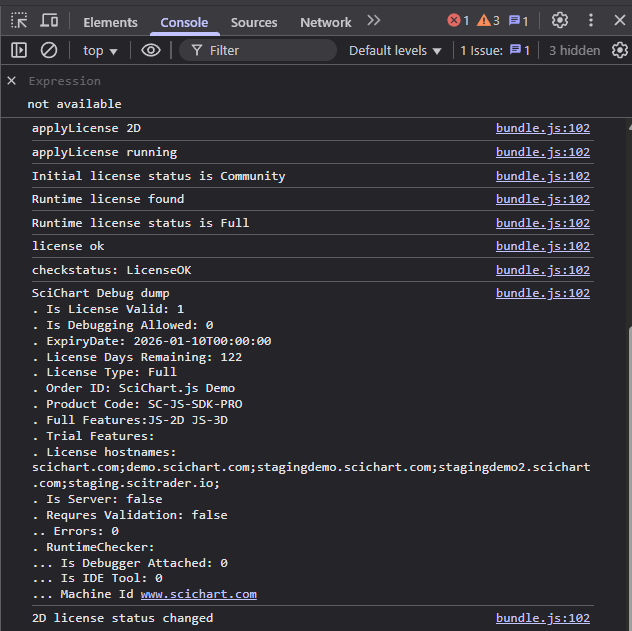
- SciChart license debug info will be dumped to the console:
Enable License Debugging in Code
It's also possible to enable license debug in code, for Electron / Tauri apps where its hard to open dev tools. Add this code snippet to your application and re-build.
import { setIsDebugLicensing } from "scichart";

setIsDebugLicensing(true);
Example of License Debug output & Messages
An example of a healthy license debug output can be found below:
applyLicense 2D
applyLicense running
Initial license status is Community
Runtime license found
Runtime license status is Full
license ok
checkstatus: LicenseOK
SciChart Debug dump
. Is License Valid: 1
. Is Debugging Allowed: 0
. ExpiryDate: 2026-01-10T00:00:00
. License Days Remaining: 122
. License Type: Full
. Order ID: SciChart.js Demo
. Product Code: SC-JS-SDK-PRO
. Full Features:JS-2D JS-3D
. Trial Features:
. License hostnames: scichart.com;demo.scichart.com;stagingdemo.scichart.com;stagingdemo2.scichart.com;staging.scitrader.io;
. Is Server: false
. Requres Validation: false
.. Errors: 0
. RuntimeChecker:
... Is Debugger Attached: 0
... Is IDE Tool: 0
... Machine Id www.scichart.com
If any errors or warnings are found in the LICENSE_DEBUG output, this can guide you to what the problem is and how to solve it. Pass this license debug output to tech support so we can assist.
The LICENSE_DEBUG output will tell you the support expiry date, the order ID, the product code, features and hostnames (domains) enabled for this license key. This will help you debug & troubleshoot further.
Step 2: Debugging Common Licensing Issues
I see a trial / community watermark in local development
When Is IDE Tool: 1 in the license debug output, SciChart.js has detected you are running on a local development machine (localhost) aka you are developing an application locally.
In this case you will need to:
- Activate a developer license on your development PC following the steps from here
- Ensure your support expiry date (see
ExpiryDatein License Debug) is later than the release date of the library version you are using. - Keep the Licensing Wizard application open or minimise to system tray (for periodic license checks)
Once a developer license is activated, it will work in perpetuity (does not require an internet connection). However, periodically SciChart.js will ping the local licensing wizard in development mode only, which has a cached downloaded version of the developer license, hence leave it open or minimise to system tray.
If you update SciChart.js in your app to a version that was released after your support-expiry date, the application will default to community license in local dev.
To resolve this, either roll-back SciChart.js to a version released before your support-expiry, or renew a developer subscription.
Once renewed, then re-activate your developer license following steps from here before updating SciChart.js in local dev.
I see a trial / community watermark in my live deployed app
When Is IDE Tool: 0 in the license debug output, SciChart is running on a live domain. You may see the error in LICENSE_DEBUG as follows:
Runtime license is invalid: License is not valid for this domain.
Expected: somedomain.com, Actual: anotherdomain.com
In this case you will need to:
- Generate a runtime key with the correct domains by following steps from here.
- Set the updated runtime license key in your application.
- Redeploy your application.
Once a runtime key is deployed correctly, it will work in perpetuity (does not require an internet connection and won't ever fallback to community / trial version).
When deployed to a domain, SciChart.js checks the local runtime key set by calling sciChartSurface.setRuntimeLicenseKey("--Your-Key--");. No licensing wizard or developer license is needed on deployed servers or machines.
If you update SciChart.js in your app and redeploy, ensure the version of SciChart.js was released before your support expiry date (ExpiryDate in License Debug).
If you renew a SciChart.js subscription, regenerate runtime keys when you next apply a SciChart.js library version update.
Otherwise, the deployed application may default to community license
I see a trial / community watermark in my advanced licensing (OEM / Embedded) app
For advanced licensing, the field Is Server: true will be present in the LICENSE_DEBUG output.
- Ensure the client/server key pair was generated (see steps) using the Assembly name or App name you expect
- You can view the License hostnames in the debug output when
LICENSE_DEBUG = 1(see steps) - Check the network tab of devtools to see if the client is making the validation request to the server, if the endpoint is what you expect, and what the response is.
If you still experience problems, contact tech support with your entire license debug output.
I see a trial / community watermark in my test domain
Test domains added to the runtime key display a watermark by design. See the page on domain licensing to find out more.
Step 3: Where to get further help & support
If you require further urgent assistance with SciChart.js licensing, contact tech support sending us the following info:
Send the following info to tech support to resolve issues with licensing.
- Entire
LICENSE_DEBUGoutput fromapplyLicense2Donwards (see steps) - Your Order ID
- Your runtime key (or client/server key pair for OEM/Advanced Licensing)
- The version of SciChart.js you are using