
The property SciChart3DSurface.Camera defines an ICameraController instance. Derived types are CameraController (a plain CLR object, which implements INotifyPropertyChanged) and Camera3D (a FrameworkElement with DependencyProperties).
By default, the SciChart3DSurface.Camera is set to a new CameraController instance. This defines the Position, Target (in world coordinates) of the camera, and whether the camera is in Perspective or Orthogonal projection modes.
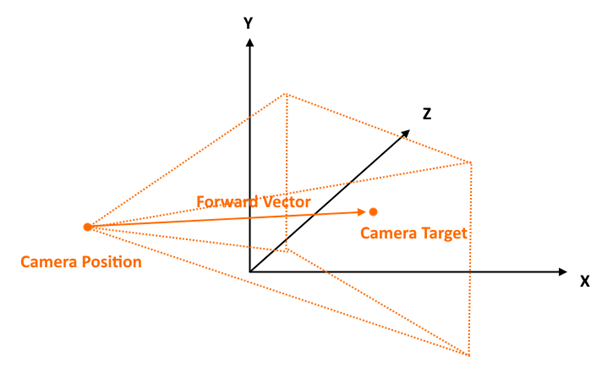
Camera Position, Target
The camera is defined by a Position, Target which are XYZ vectors in World Coordinates.
Other properties which define the viewport as seen by the camera include:
- Camera.Position and Camera.Target which define the position and target of the camera in World Coordinates.
- Camera.OrbitalPitch and Camera.OrbitalYaw which define the pitch and yaw around the target in Radians
- Camera.Radius which is the distance of the Camera Position to the Camera Target
- Camera.AspectRatio which defines the aspect ratio.
- Camera.ProjectionMode which defines whether the camera is Perspective or Orthogonal
- Camera.OrthoWidth and Camera.OrthoHeight, which define the width, height of the projected viewport when in ProjectionMode Orthogonal.
- Camera.FieldOfView which is the FOV of the camera in radians.
- Camera.NearClip and Camera.FarClip which define when clipping of close or far objects should occur.
The WPF Chart Example Modify Camera3D Properties shows how to manipulate the camera, and how to switch between perspective and orthogonal modes.
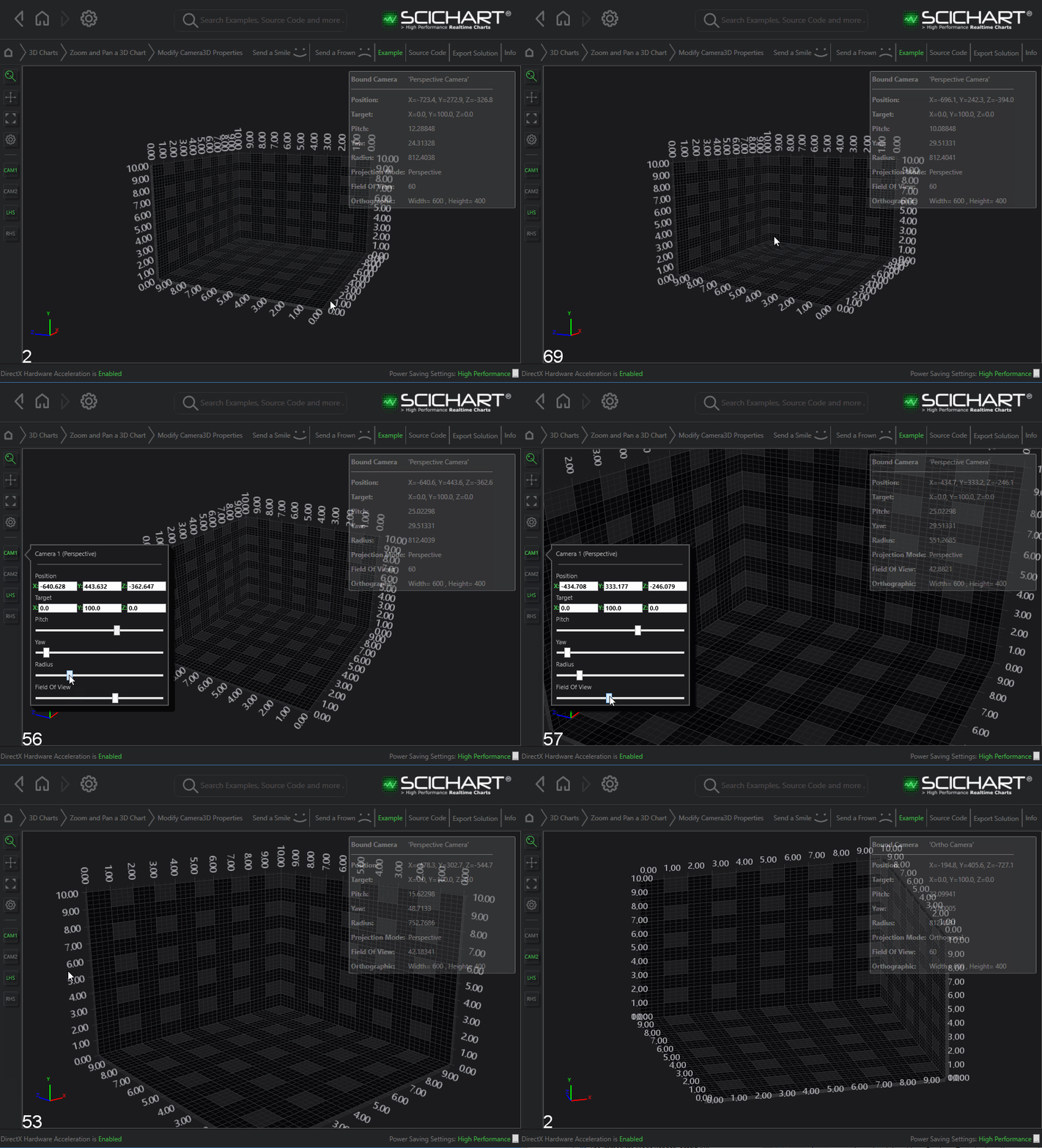
Controlling the Camera in code-behind
In code-behind 3D applications, there are two options for controlling the camera: using the default CameraController instance or creating a custom Camera3D instance.
By default, the CameraController instance is automatically created with the SciChart3DSurface and provides a range of properties for controlling the camera. You can obtain this instance using the SciChart3DSurface.Camera or Viewport3D.CameraController properties.
| Controlling the Camera using the ICameraController instance |
Copy Code |
|---|---|
var sciChart3DSurface = new SciChart3DSurface(); var cameraController = sciChart3DSurface.Camera; cameraController.Position = new Vector3(450, 300, -450); cameraController.Target = new Vector3(-15, 50, 15); // ... | |
Alternatively, you can create a custom Camera3D instance, assign it to the SciChart3DSurface.Camera property, and control the camera through that instance. This gives you full control over the camera and is particularly beneficial for advanced use cases or when implementing custom camera interactions.
| Controlling the Camera using a custom Camera3D instance |
Copy Code |
|---|---|
var sciChart3DSurface = new SciChart3DSurface(); var camera3D = new Camera3D(); sciChart3DSurface.Camera = camera3D; camera3D.Position = new Vector3(450, 300, -450); camera3D.Target = new Vector3(-15, 50, 15); // ... | |
Controlling the Camera in view-model (MVVM)
In MVVM-based 3D applications, the camera can be controlled directly from the ViewModel by defining a custom Camera3D instance in XAML and configuring appropriate data bindings. You need to bind the Camera3D’s dependency properties – such as Position, Target, etc. – to corresponding properties in the view-model. The ViewModel must implement the INotifyPropertyChanged interface to ensure that updates propagate correctly to the Camera3D instance.
| Creating a custom Camera3D instance in XAML |
Copy Code |
|---|---|
<!—- DataContext must be set to an instance of YourChart3DViewModel --> <s3D:SciChart3DSurface> <s3D:SciChart3DSurface.Camera> <s3D:Camera3D Position="{Binding Position}" Target="{Binding Target}"/> </s3D:SciChart3DSurface.Camera> </s3D:SciChart3DSurface> | |
| Controlling the Camera using view-model properties |
Copy Code |
|---|---|
public class YourChart3DViewModel : INotifyPropertyChanged { private Vector3 _position; private Vector3 _target; public Vector3 Position { get => _position; set { _position = value; RaisePropertyChanged(nameof(Position)); } } public Vector3 Target { get => _target; set { _target = value; RaisePropertyChanged(nameof(Target)); } } public YourChart3DViewModel() { Position = new Vector3(350, 200, -350); Target = new Vector3(-10, 40, 10); } // ... public event PropertyChangedEventHandler PropertyChanged; private void RaisePropertyChanged(string propertyName) { var handler = PropertyChanged; handler?.Invoke(this, new PropertyChangedEventArgs(propertyName)); } } | |
| Controlling the Camera using view-model properties |
Copy Code |
|---|---|
var viewModel = new YourChart3DViewModel(); viewModel.Position = new Vector3(450, 300, -450); viewModel.Target = new Vector3(-15, 50, 15); // ... | |