Deploying SciChart.js to Domains
To allow website (known domain) deployment of SciChart.js applications without a watermark and to comply with the terms for commercial use, you will need to setup a runtime license key with valid domains for your app.
Products purchased from our store that enable SciChart.js website domain licensing include:
- SciChart JS 2D
- SciChart JS 2D & 3D
- SciChart Bundle 2D Pro
- SciChart Bundle 2D/3D Pro
- SciChart Bundle 2D/3D Source
For purchasing, please visit scichart.com/shop. For pre-sales enquiries contact technical sales and for licensing support post-sales please contact technical support.
If you are deploying to embedded devices (ie the site will run on localhost) or you are an OEM and the application will be deployed by your customers to
domains that you do not control, then we have alternative licensing mechanisms.
Please see deploying with advanced licensing for more info.
When you have a paid SciChart.js developer license, to deploy an application to a domain you need to register that domain with your account, generate and insert the runtime key into your app. Please find the instructions below.
Adding / removing production domains to your scichart.js license key
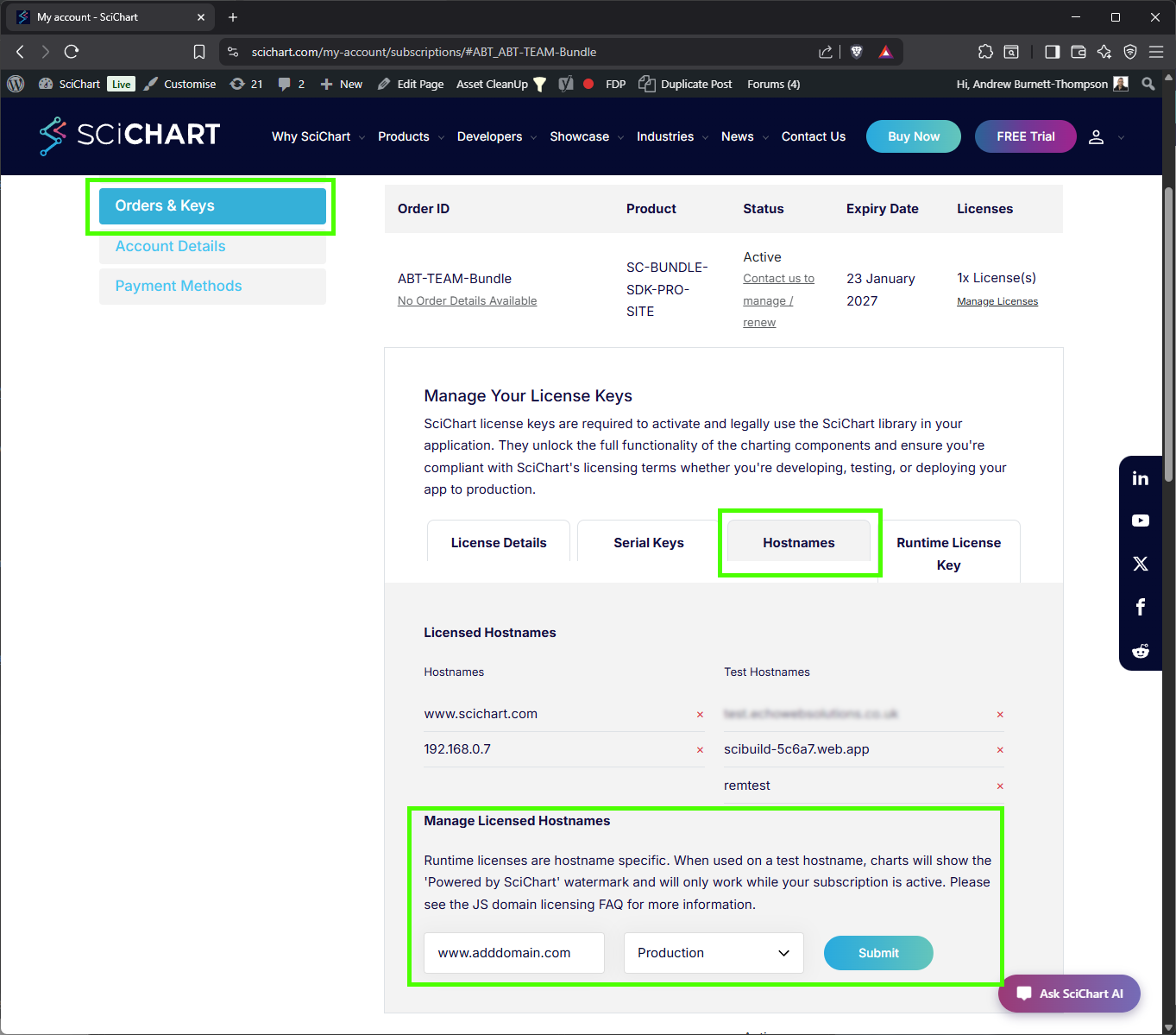
- Head over to scichart.com/my-account to adminster your license keys (Need help? See location and management of license keys)
- In the section Orders & Keys - Manage Licenses - Hostnames you can add/remove hostnames for your license
- Enter the domain then select from the dropdown "Production" to add a production domain, or "Test" to add a test domain
- Click "Submit"
- Check the hostname was added
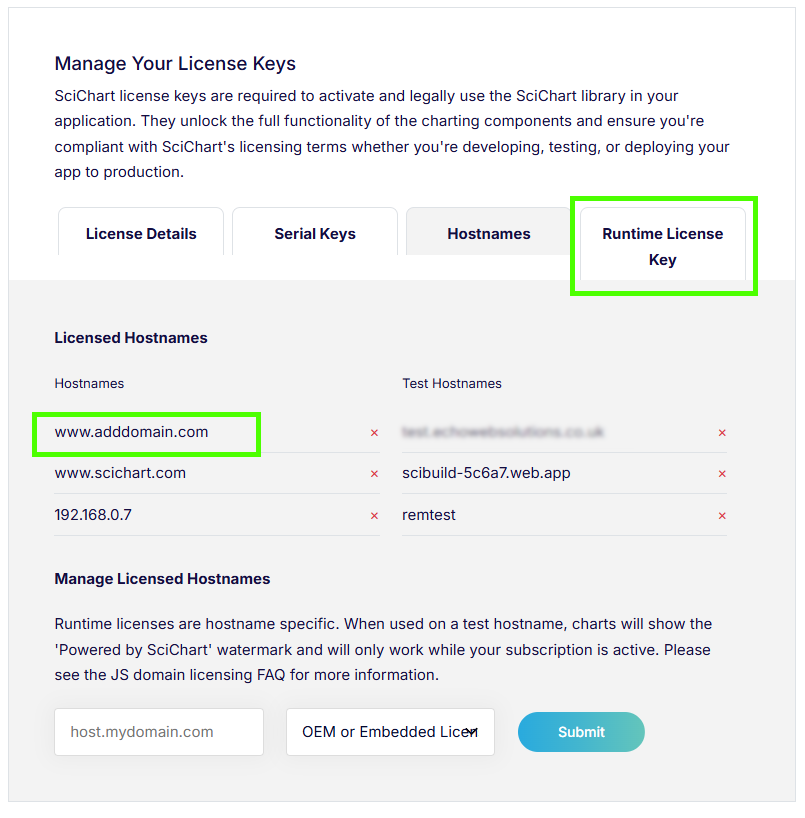
- Once the license key has been added, now click "Runtime License Key" to regenerate the runtime key
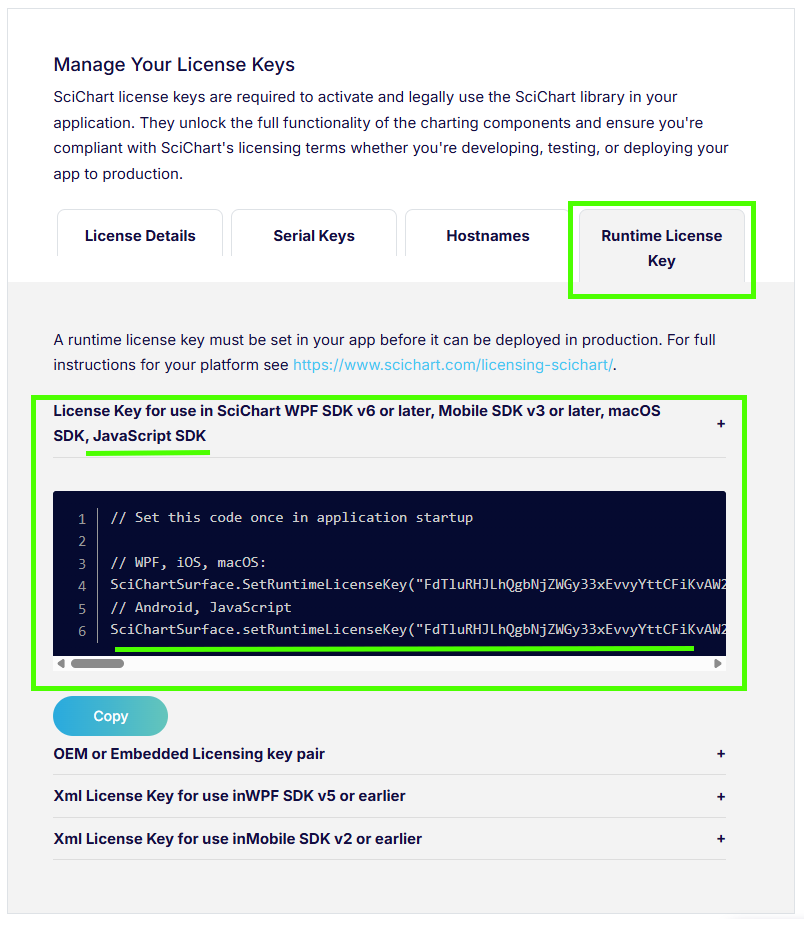
Deploying a runtime Key in your app
Once you have generated a runtime key following the steps above, add the runtime key to your application by copying the line of code:
SciChartSurface.setRuntimeLicenseKey("--your-runtime-key-here--");
The Runtime Key must be placed in your application once before any SciChartSurface is shown or instantiated, for example in a Root component in a React App.
Once a runtime key is deployed correctly, it will work in perpetuity (does not require an internet connection and won't ever fallback to community / trial version).
When deployed to a domain, SciChart.js checks the local runtime key set by calling sciChartSurface.setRuntimeLicenseKey("--Your-Key--").
No licensing wizard or developer license is needed on deployed servers or machines.
If you update SciChart.js in your app and redeploy, ensure the version of SciChart.js was released before your support expiry date (ExpiryDate in License Debug).
If you renew a SciChart.js subscription, regenerate runtime keys when you next apply a SciChart.js library version update.
Otherwise, the deployed application may default to community license
Testing & debugging of runtime license keys
To test and debug your runtime key, it is strongly recommended to follow the steps to enable license debug and view the console debug output before deploying your app.
If the domain name is found correctly, go ahead and deploy your app to your domain.
FAQs on Domain Licensing Deployment
How can I remove a domain from my license key?
Follow the steps above to add/remove domains from your license key, regenerate the runtime key and deploy.
I see a trial watermark in my test domain?
Test domains added to the runtime key display a watermark by design.
I see a powered by SciChart watermark in my live deployed application
Follow the troubleshooting steps from here
How many domains can I register with my license key?
This depends on the license type, but SciChart.js licenses have at least 5 production domains per license. If you hit a limit or need help, contact tech support