Location & Management of Licenses after Purchase
This page will tell you all about how to locate and manage your SciChart.js license keys after purchase.
Where are my license keys after purchase?
Licenses are emailed out automatically immediately to the purchaser / customer email address after payment received. If you have paid by credit card, this should be immediate. If you have paid by wire-transfer, this will occur as soon as payment is received and reconciled in our system.
Licenses emailed to purchaser/customer
After purchasing a SciChart.js license, the purchaser or customer on record will receive a confirmation email with a Developer Serial Key and Runtime Key. This license key email looks like this:
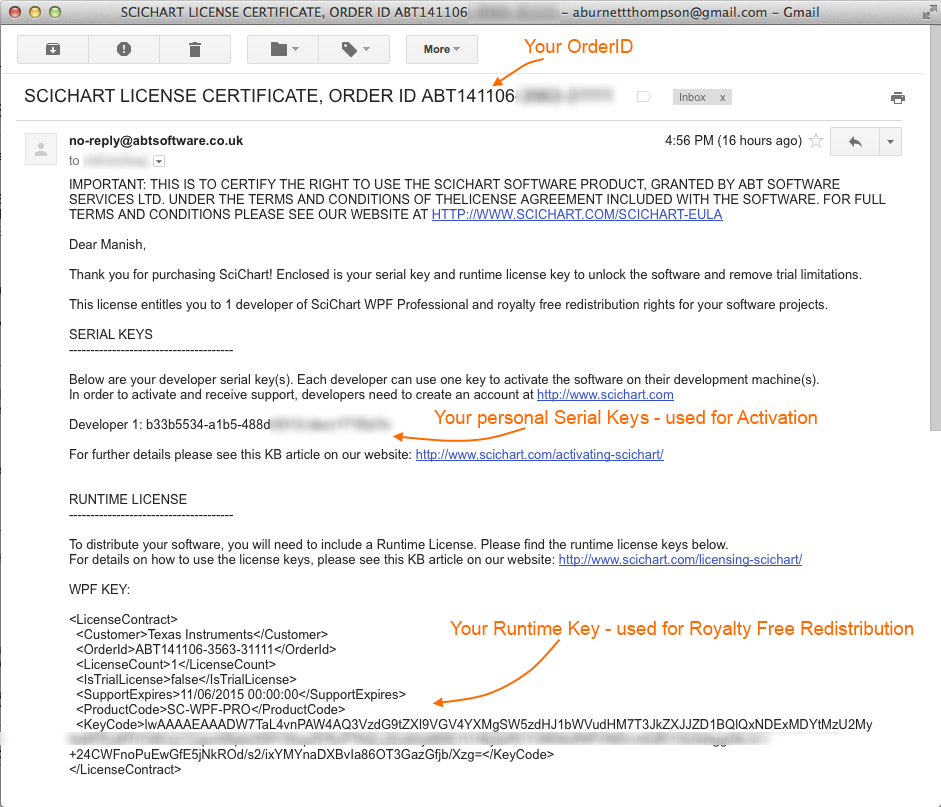
If you do not receive a license email after purchase, please check your spam folders and white-list our emails!
If you still cannot find the licensing email, contact technical support, or check the my-account page (details below)
License Management online
You can also view and manage purchased license keys and serials in the scichart.com/my-account page.
- Create an account at scichart.com/register or scichart.com/login if you already have one
- Ensure the email used for the account is the same as the one you used for purchasing
- Your account will automatically be linked to license purchases by the email.
- Now, you can view and manage licenses online at scichart.com/my-account
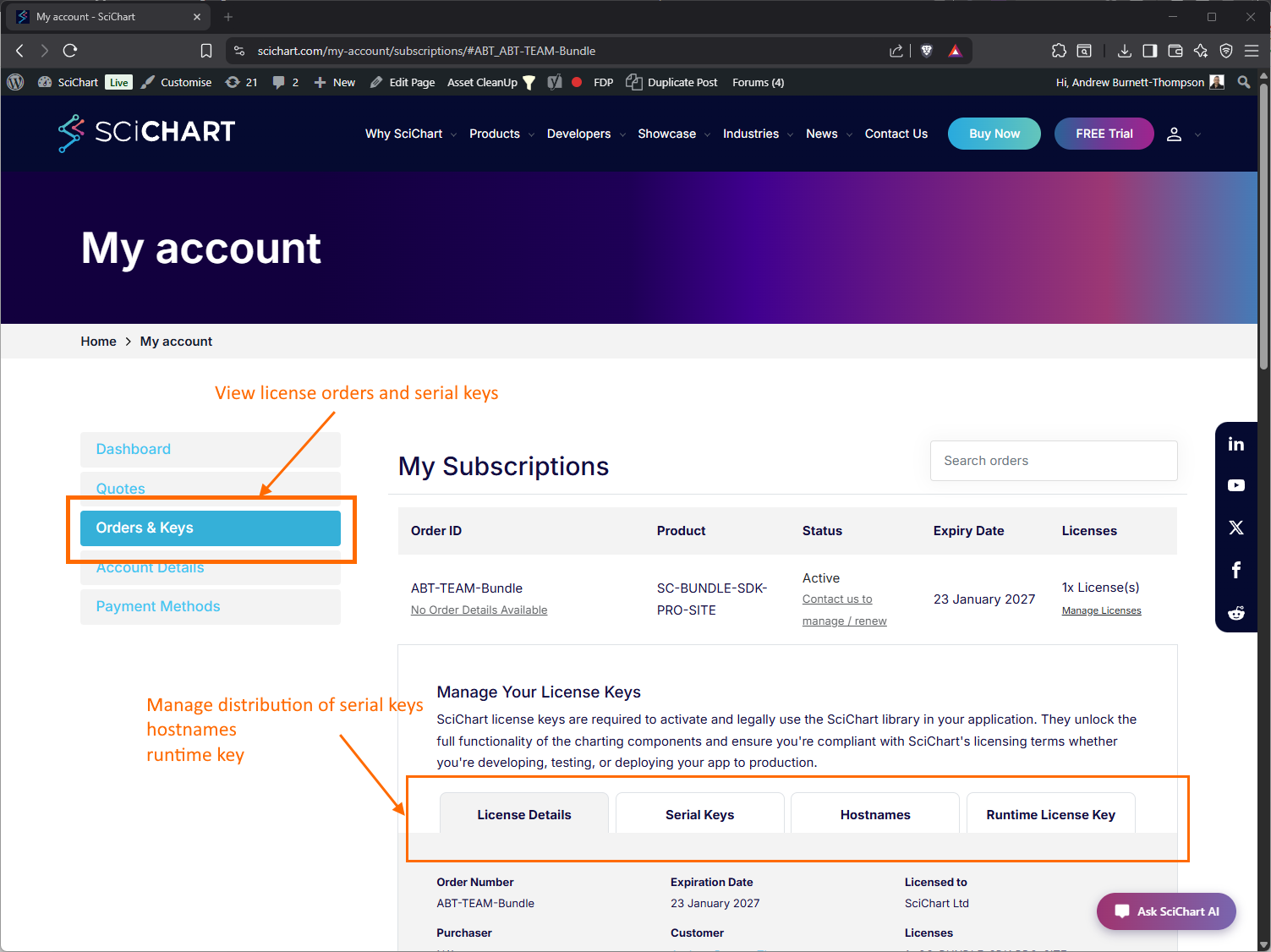
Licenses are linked to the purchaser/customer account at scichart.com/my-account. After purchase, only the purchaser/customer can view this info.
However, once a developer has activated a license, they can also view details at scichart.com/my-account.
Managing / Distributing Licenses to your team
In scichart.com/my-account/subscriptions you can view orders that you have made, license keys and manage distribution to your team.
In this tab, you can view the serial keys associated with your license order(s) and who has activated them (email), managed hostnames and runtime keys.
Assigning a developer license (serial key) to a team member
Click on the Serial Keys tab in scichart.com/my-account/subscriptions to reveal the developer serial keys.
Send these to your team along with instructions to activate a developer license
Unassigning or transferring a developer license (serial key) from a team member
When a team member no longer needs a license (but may do in future)
To reassign a license key from a user to another, instruct the developer to follow steps from deactivating a developer license.
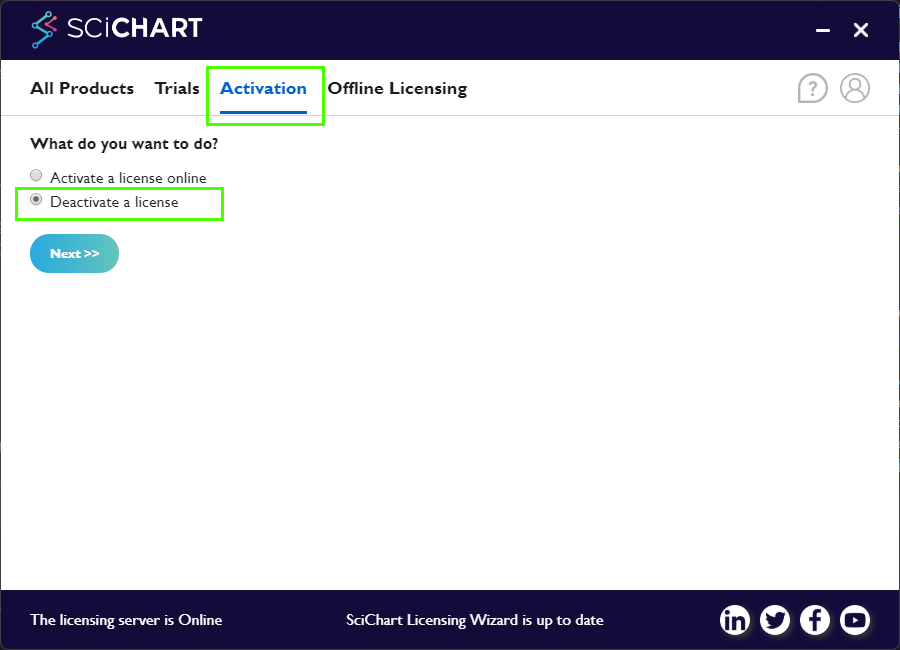
One deactivated from all machines, the license key will be free to use by another developer.
When a team member has left your organisation
If a team member has left your organisation, it is possible to remove a team member permanently and re-assign their license key by clicking the remove button next to their activation in the my-account page.
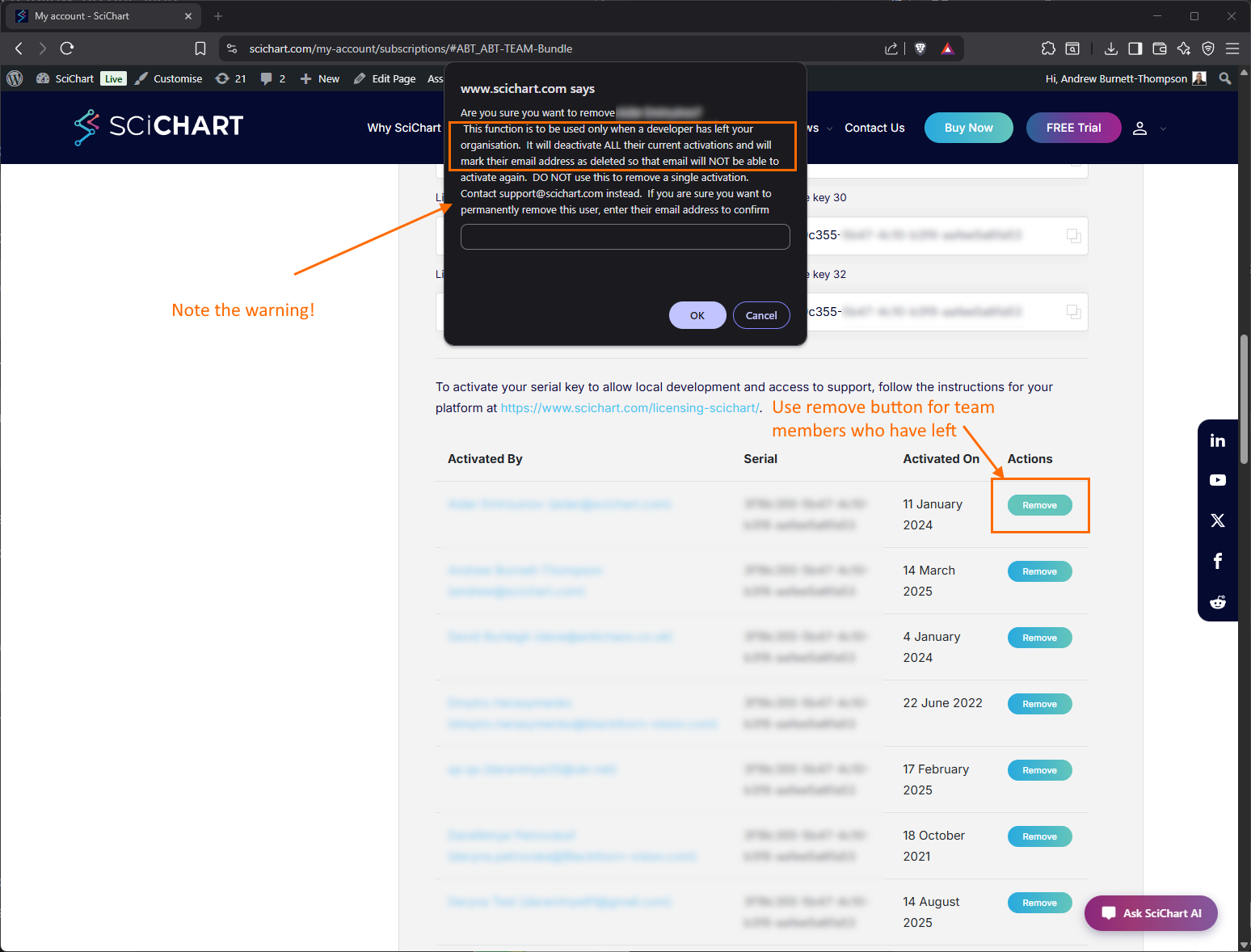
Note that this will deactivate all their current machines and mark them as deleted in the system, so should only be used if the user has left the team.
Where to get help for transferral of licenses
For all other queries not covered by the self-help guides, you can contact tech support for assistance in deactivation, activation or transferral of license keys.