
WPF vs Avalonia: Which Is Best in 2026?
Discover whether WPF or Avalonia XPF is the right choice for your high-performance data visualization needs in 2026.

To support modern high-DPI displays, Windows provides the display scaling mechanism by which the operating system enlarges UI elements to maintain usability on high-resolution displays. For example, a 4K monitor may have four times as many pixels as a standard HD monitor, making unscaled UI elements appear tiny and difficult to interact with.
Windows achieves scaling by increasing the logical size of UI components so that text, buttons, and other elements remain usable. The scaling percentages is in the range of 100% to 500%, which corresponds to DPI scaling factor of x1 to x5.
Windows provides support for multi-display setups, allowing users to connect and manage two or more displays. Windows lets you extend your desktop across multiple screens, duplicate your screen, or use only a single screen.
For each display in a multi-display setup, Windows provides detailed information including screen dimensions (width and height), screen position (left-top corner coordinates), screen scaling (see section above), and an identification of the primary screen. The primary screen always contains the origin (0,0) point. All dimensions and position values are represented in physical pixels.
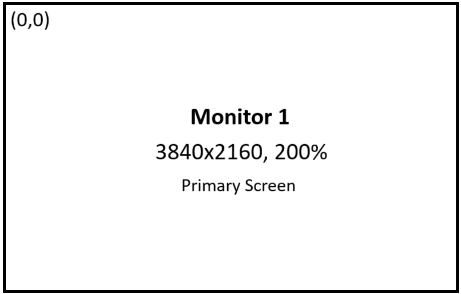
In a single display setup, there is only one screen which is primary by default and has default origin (0,0) position. Screen dimensions are the width and height in physical pixels, and screen scaling is the DPI scaling factor of that particular screen.
In a duplicate display setup, Windows selects only one display which has a lower resolution in physical pixels. Actually, there is also only one screen with the same configuration as in a single display setup.
In an extended display setup, Windows combines all the available displays in a virtual screen rectangle. The desktop covers the virtual screen instead of a single monitor. The illustration below shows a possible arrangement of three monitors.

Monitor 1 is a primary screen and has default origin (0,0) screen position. Screen dimensions are the width and height in physical pixels (3840, 2160), and screen scaling is the DPI scaling factor (200%, x2) of Monitor 1.
Monitor 2 is not a primary screen and has negative screen position coordinates (-1920, -540). (The primary monitor does not have to be in the upper left of the virtual screen. When the primary monitor is not in the upper left corner of the virtual screen, parts of the virtual screen have negative coordinates.) Screen dimensions are the width and height in physical pixels (1920, 1080), and screen scaling is the DPI scaling factor (100%, x1) of Monitor 2.
Monitor 3 is not a primary screen and has positive and negative screen position coordinates (3840, -810). Screen dimensions are the width and height in physical pixels (1920, 1080), and screen scaling is the DPI scaling factor (100%, x1) of Monitor 3.
Because the arrangement of monitors is set by the user, all applications should be designed to support negative screen position coordinates.
All screen dimensions and positions are represented in physical pixels, and DPI scaling factors only apply to each screen individually and do not affect the arrangement of monitors on the virtual screen.
To obtain information about all connected displays in WPF application, you can leverage the System.Windows.Forms.Screen class, which is part of the Windows Forms namespace but can be used effectively within WPF applications.
The Screen.AllScreens static property returns an array of Screen objects, each representing a connected display. You can iterate through this array to access information about each screen configuration.
using System.Windows.Forms; // Required for Screen class
using System.Diagnostics;
using System.Windows;

public partial class MainWindow : Window
{
    public MainWindow()
    {
        InitializeComponent();
        DisplayScreenInfo();
    }

    private void DisplayScreenInfo()
    {
        foreach (Screen screen in Screen.AllScreens)
        {
            Debug.WriteLine($"Screen Name: {screen.DeviceName}\n" +
                            $"Primary: {screen.Primary}\n" +
                            $"Bounds: {screen.Bounds}\n" +
                            $"Working Area: {screen.WorkingArea}");
        }
    }
}
The Screen class provides the following public properties:
The screen dimensions obtained from Screen.Bounds or Screen.WorkingArea are in physical pixels. When dealing with high-DPI displays, you might need to adjust these values based on the current DPI scaling factor to get the correct device-independent units (DIPs) dimensions for your WPF controls.
You can retrieve the DPI scaling factor using VisualTreeHelper.GetDpi(Visual) method. If the Visual is not rendered, VisualTreeHelper.GetDpi returns the DPI scaling factor of the primary screen, and if the Visual is rendered, VisualTreeHelper.GetDpi returns the DPI scaling factor of the screen at which this Visual is placed.
using System.Diagnostics;
using System.Windows.Media;
using System.Windows;

public partial class MainWindow : Window
{
    public MainWindow()
    {
        InitializeComponent();
        DisplayDPIScaling();
    }

    private void DisplayDPIScaling()
    {
        DpiScale dpiScale = VisualTreeHelper.GetDpi(this);
        Debug.WriteLine($"DPI Scale X: {dpiScale.DpiScaleX}\n" +
                        $"DPI Scale Y: {dpiScale.DpiScaleY}");
    }
}To manually set the position of a WPF window on a primary screen, you can use the Left and Top properties of the Window class. These properties determine the distance, in device-independent units (DIPs), from the left and top edge coordinates of the primary screen to the upper-left corner of your window. The left and top edge coordinates of the primary screen are always (0,0). You should also set the WindowStartupLocation property to Manual to ensure your specified coordinates are used.
Keep in mind that if your application is per-monitor DPI-aware and your primary screen is a high-DPI display, you need to convert coordinates between physical pixels and DIPs based on the current DPI scaling factor of the primary screen. To retrieve the DPI scaling factor, you can use VisualTreeHelper.GetDpi(this) method.
using System.Windows.Forms; // Required for Screen class
using System.Windows.Media;
using System.Windows;

public partial class MainWindow : Window
{
    public MainWindow()
    {
        InitializeComponent();
        PlaceWindowCenterPrimary();
    }

    private void PlaceWindowCenterPrimary()
    {
        DpiScale dpiScale = VisualTreeHelper.GetDpi(this);
        Screen primaryScreen = Screen.PrimaryScreen;

        double screenWidthPx = primaryScreen.Bounds.Width;
        double screenHeightPx = primaryScreen.Bounds.Height;

        double screenWidthDIPs = screenWidthPx / dpiScale.DpiScaleX;
double screenHeightDIPs = screenHeightPx / dpiScale.DpiScaleY; // Window size is 60% of screen size double windowWidthDIPs = screenWidthDIPs * 0.6; double windowHeightDIPs = screenHeightDIPs * 0.6; Width = windowWidthDIPs; Height = windowHeightDIPs; WindowStartupLocation = WindowStartupLocation.Manual; Left = (screenWidthDIPs - windowWidthDIPs) / 2; Top = (screenHeightDIPs - windowHeightDIPs) / 2; } }It may seem that setting the position of a WPF window on a non-primary (secondary) screen is very similar to setting the position on a primary screen. You just need to consider the left and top edge coordinates of the secondary screen (instead of 0,0) and use the DPI scaling factor of the secondary screen. Unfortunately, there is a problem with this approach.
If your application is per-monitor DPI-aware and its window moves to another display, the WPF layout system triggers a DPI Changed event and updates the current DPI scaling factor based on the screen where the window mostly appears. This behavior can cause the window to be positioned incorrectly when converting Left and Top coordinates between physical pixels and DIPs with the wrong DPI scaling factor.
For example, you have an extended display setup with two monitors one above the other (see illustration below). If you need to place the window on Monitor 2, you convert Left and Top coordinates to DIPs using DPI scaling factor of Monitor 2 (300%, x3). However, applying the x3 factor to physical pixels may cause the window to be moved to Monitor 1, leading the WPF layout system to update the current DPI scaling factor to 100%, x1. The window may be positioned between the two monitors instead of Monitor 2.

As a solution, you can calculate width, height and position (left, top) of a window in physical pixels instead of DIPs, and set window properties using the MoveWindow Win32 API method instead of directly setting the Width, Height, Left and Top properties of the Window class.
When you set the window position in physical pixels, WPF automatically updates the actual values for the Width, Height, Left and Top properties using the DPI scaling factor of the screen where the window is already placed. This approach guarantees that the window will be placed on the correct screen, and the WPF layout system will use the correct DPI scaling factor of that screen.
Note that the MoveWindow must be invoked twice: the first invocation places the window on the correct screen, which triggers the DPI Changed event and updates the current DPI scaling factor; the second invocation updates the actual values for the Width, Height, Left and Top properties of the Window class using the correct DPI scaling factor.
using System.Windows.Interop; // Required for DLLImport
using System.Windows.Forms;   // Required for Screen class
using System.Windows.Media;
using System.Windows;
using System.Linq;

public partial class MainWindow : Window
{
    [DllImport("user32.dll", SetLastError = true)]
    private static extern bool MoveWindow(IntPtr hWnd, int x, int y, int iWidth, int iHeight, bool bRepaint);

    public MainWindow()
    {
        InitializeComponent();
        SourceInitialized += (s, e) => PlaceWindowCenterNonPrimary();
    }

    private void PlaceWindowCenterNonPrimary()
    {
        var helper = new WindowInteropHelper(this);
        if (helper.Handle != IntPtr.Zero)
        {
            Screen screen = Screen.AllScreens.FirstOrDefault(s => !s.Primary);

            double screenWidthPx = screen.Bounds.Width;
            double screenHeightPx = screen.Bounds.Height;

            // Window size is 60% of screen size
            double windowWidthPx = screenWidthPx * 0.6;
            double windowHeightPx = screenHeightPx * 0.6;

            WindowStartupLocation = WindowStartupLocation.Manual;

            double leftPx = screen.Bounds.X + (screenWidthPx - windowWidthPx) / 2;
            double topPx = screen.Bounds.Y + (screenHeightPx - windowHeightPx) / 2;

            // The first move places the window on the correct screen which raises DPIChanged (WM_DPICHANGED)
            // The +1 coerces WPF to update Window.Top/Left/Width/Height on the second move
            MoveWindow(helper.Handle, (int)leftPx + 1, (int)topPx + 1, (int)windowWidthPx, (int)windowHeightPx, false);
            MoveWindow(helper.Handle, (int)leftPx, (int)topPx, (int)windowWidthPx, (int)windowHeightPx, true);
        }
    }
}
Recent Blogs

Queens Award for Innovation
Proud winners of the Queens Award for Innovation, 2019. Awarded on account of our innovative graphics engine which underpins the SciChart library and enables our world-beating charting performance

National Business Awards
Highly Commended for Lloyds National Business Awards, 2019. Awarded on account of our innovative graphics engine and impressive customer base

National Technology Awards
Awarded “Healthcare Tech of the Year” at the 2025 National Technology Awards – a top UK recognition for breakthrough innovation in technology.

Reviews
SciChart has received hundreds of verified, 3rd party reviews