
WPF vs Avalonia: Which Is Best in 2026?
Discover whether WPF or Avalonia XPF is the right choice for your high-performance data visualization needs in 2026.
Look, we’ve all been there. You’re building this advanced, high-density visualization, and everything is humming along perfectly – until you cross that unspoken threshold, maybe around half a million data points. That’s when your WPF chart starts to freeze, or the data points lag behind the stream. Suddenly, your real-time application feels a bit more like “real-slow”. The insights become unreliable, and your whole project’s suitability is on the line, which is quite the headache for any developer.
The truth is, working with big data visualization in WPF can be a tricky business. It presents inherent rendering challenges. But here’s the good news: you don’t have to settle for unreliable performance. This isn’t some temporary patch we’re talking about. We’re going to share specific, actionable techniques to give your WPF charts a genuine performance boost, aiming for real-time reliability, even when dealing with something enormous, like 100 million data points. That’s the goal, and it’s totally achievable. Let’s dig in.
Before you start tweaking every minor setting in your application, let’s address the elephant in the room: the foundation matters. If your existing WPF chart library is fundamentally slow or poorly optimized, all the workarounds in the world are just temporary fixes, band-aids on a bigger problem. You might squeeze out a marginal gain, but that fix won’t be scalable for the long-term demands of a mission-critical, big data project.
Think of it like this: you wouldn’t enter a Formula 1 race in a family sedan and expect to win, no matter how much you fine-tune the carburetor. You need the right engine from the offset. For high-performance charting, the library must be architecturally designed for speed and scale. This is about ensuring your solution can actually perform at the necessary level, not just applying quick patches.
Getting your WPF application running like a dream requires a multi-pronged approach. What really matters is how WPF handles rendering, memory, and even the application’s startup process. Below are some of the most effective WPF performance optimization techniques that developers often overlook. Even a few small changes could make a huge difference in your application’s speed.
The data itself is usually the biggest bottleneck. If you feed the rendering engine too much or poorly organized data, everything slows down.
Having the right graphics engine ensures your hardware has the boost it needs to process a large influx of data.
When dealing with data visualization, rendering is the core job. Optimizing this aspect contributes to a smooth user interaction and high-quality WPF animation performance.
These WPF performance tips focus on the broader application context, not just the chart itself.
This focus on both data efficiency and streamlined rendering architecture is essential to achieve truly high-performance charts.
So, you’ve applied a few of these WPF performance optimization techniques. Great! But how do you actually know if they’re working? That’s where rigorous WPF performance testing comes in. After all, you don’t want to rely on the subjective “it feels faster” test. Hard numbers are better.
Our recommended methods for testing are twofold:
Testing isn’t a one-time thing. You need to test under load – handling millions of data points and streaming updates at high speeds for real-world applications.
After all the optimization tips, you might realize that achieving true high-performance WPF charts still requires an exceptional foundation. This is why the architectural choice of your WPF chart library is so important. This is where SciChart truly differentiates itself.
SciChart was built from the ground up to solve the big data visualization problem in WPF, recognizing that the standard WPF rendering engine simply wasn’t fast enough for mission-critical applications.
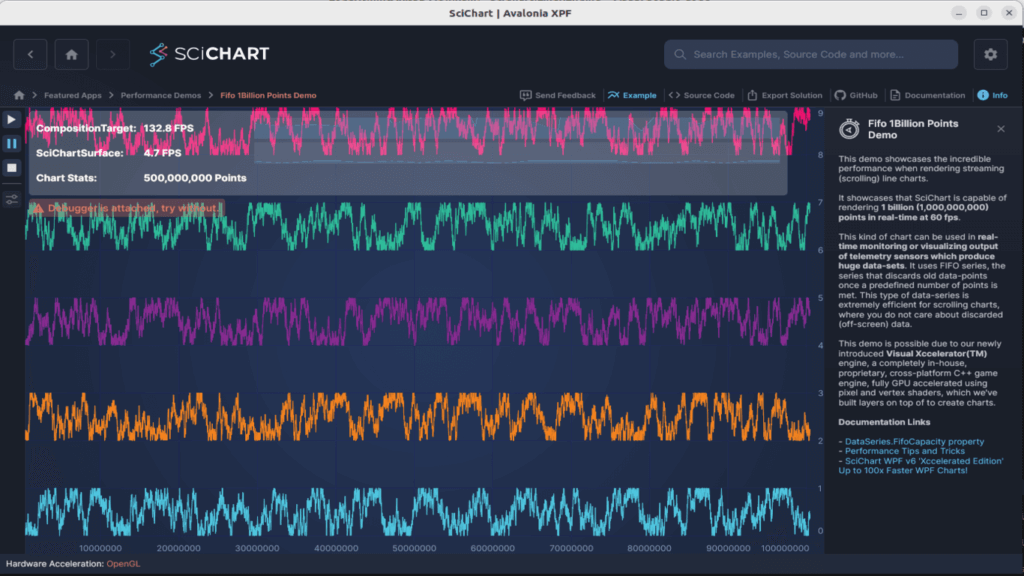
This WPF FIFO Chart demo showcases scrolling line charts, rendering 1 billion (1,000,000,000) points in real-time at 60 FPS.
Here’s how SciChart helps you skip some of the workarounds above and achieve elite performance out of the box:
If your project demands unchartered real-time WPF performance optimization from day one, you need a library that’s built for that specific requirement. SciChart gives you the performance, the customization abilities, and the technical support you need for mission-critical projects.
The challenge of building high-performance WPF charts is real. Freezing, lagging, and unreliable real-time insights are common pain points when visualizing big data. But it doesn’t have to be your reality.
The key takeaways here are straightforward:
Ultimately, your success in achieving reliable real-time charting with huge datasets boils down to the technology you choose. If you’re looking for that advanced, stable performance – the kind that handles 100 million points without dropping a frame – then it’s time to look at the market leader in WPF charting.
Get Started With SciChart WPF Today
Recent Blogs

Queens Award for Innovation
Proud winners of the Queens Award for Innovation, 2019. Awarded on account of our innovative graphics engine which underpins the SciChart library and enables our world-beating charting performance

National Business Awards
Highly Commended for Lloyds National Business Awards, 2019. Awarded on account of our innovative graphics engine and impressive customer base

National Technology Awards
Awarded “Healthcare Tech of the Year” at the 2025 National Technology Awards – a top UK recognition for breakthrough innovation in technology.

Reviews
SciChart has received hundreds of verified, 3rd party reviews